GIF zoomer
Zoom in or out on an animated GIF around a point you choose. Click the preview to set the centre, pick the zoom at the start and at the end, and choose an easing curve. Zoom and return makes a loop with no jump. It runs in your browser: no upload, no sign-up.
Free · no sign-up · runs in your browser
GIF only · up to 25 MB · up to 300 frames · nothing is uploaded
Drop a GIF here
The preview appears here.
Your new GIF appears here.
How to use it
Drop your GIF
Drop a GIF onto the box or click to choose one. Up to 25 MB and 300 frames. It is opened on your device and never leaves it.
Click the centre
Click the small picture under Zoom centre to place the dot where the zoom should aim. The arrow keys nudge it. The preview moves with it.
Set the zoom
Choose the zoom at the start and at the end, between 1 and 4 times, and an easing. Tick Zoom and return for a loop that comes back, and Add frames for a smoother zoom if the GIF has few frames.
Create and download
Press Create zoomed GIF. The result appears next to the preview with its frame count, size and dimensions, and Download saves it.
Examples made with this tool
Each example zooms one of our own GIFs. The original is on the left and the zoomed GIF is on the right, and the settings line lists the zoom values, the centre and the easing.
 Original
 Zoomed GIF
The bear zooms from 1 to 2.4 times on the centre with an ease in and out. The first frame shows the whole picture and the last shows the face and the heart, at the same pixel size as the original.Settings usedZoom 1× to 2.4× with ease in and out easing, centred 50% across and 50% down. 16 frames at 320 × 320 px.GIF 498 KB (320 × 320 px) → GIF 509 KB (320 × 320 px), 16 frames  Original
 Zoomed GIF
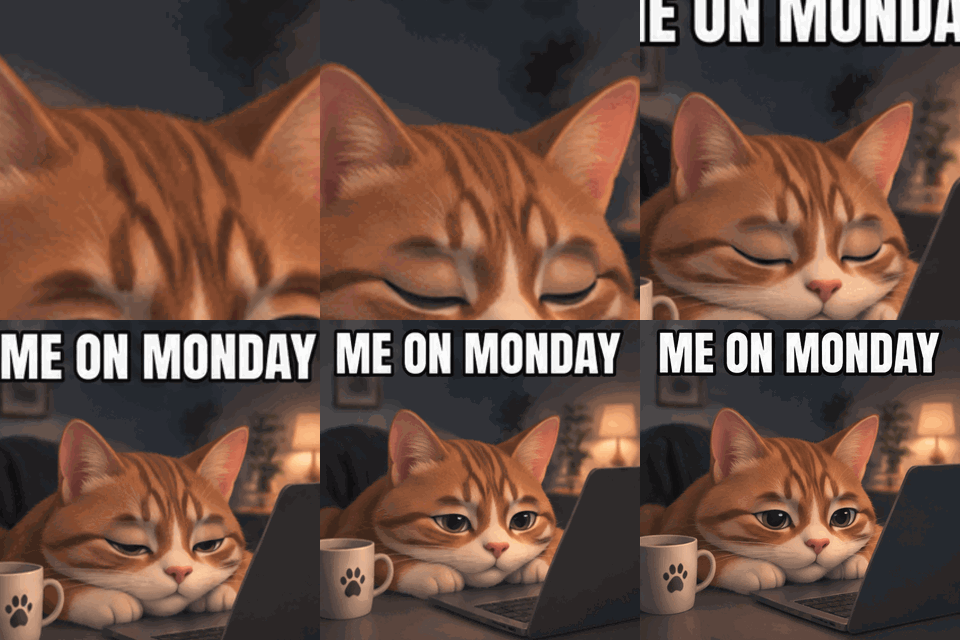
A zoom out: the start is 3 times and the end is 1 time, aimed a little above the middle, with an ease out. It opens on the cat's fur and pulls back to the full caption and picture.Settings usedZoom 3× to 1× with ease out easing, centred 50% across and 42% down. 16 frames at 320 × 320 px.GIF 719 KB (320 × 320 px) → GIF 689 KB (320 × 320 px), 16 frames 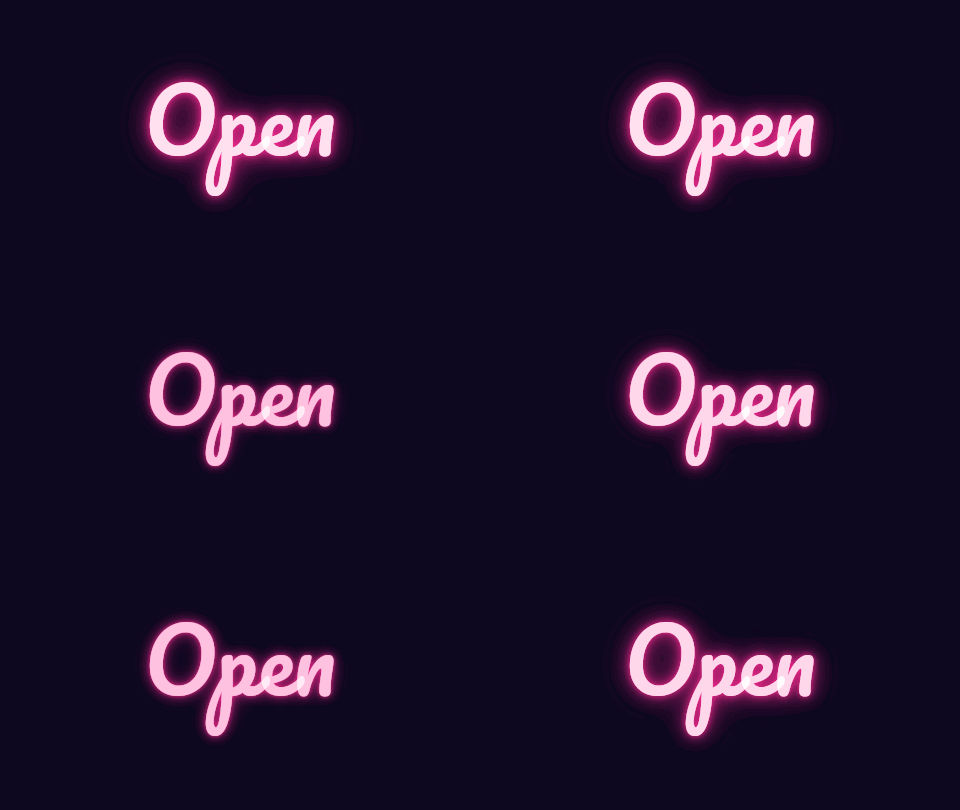 Original
 Zoomed GIF
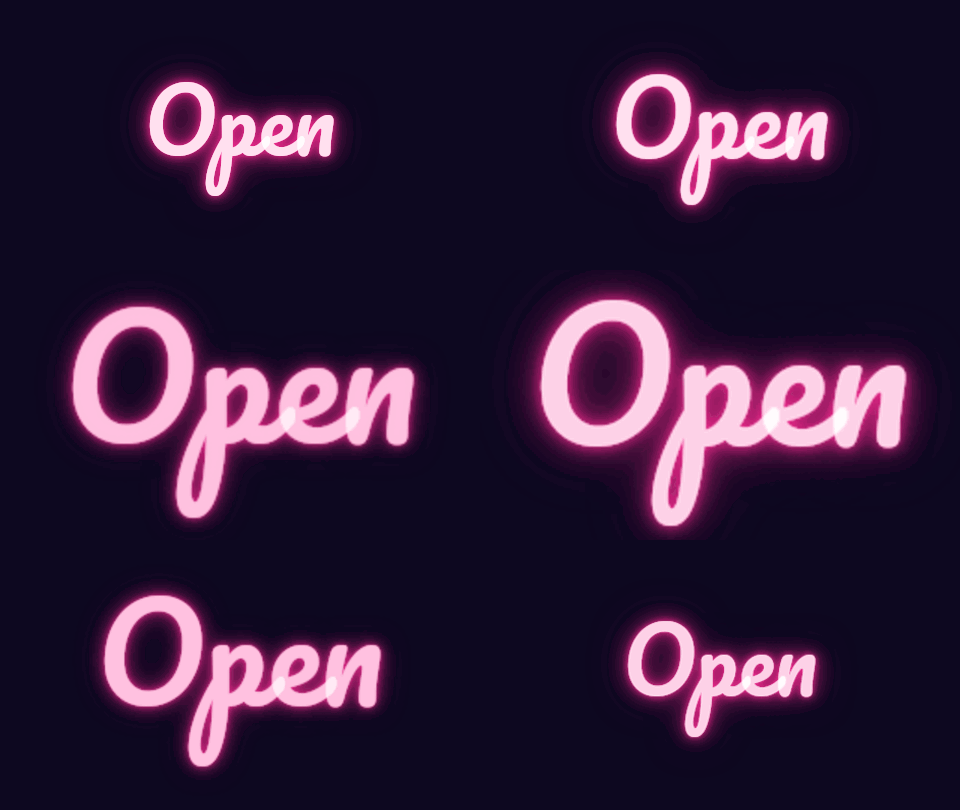
Zoom and return, from 1 to 2 times. The scale peaks in the middle of the loop and comes back, and the last frame sits one step before the first, so the loop has no jump.Settings usedZoom 1× to 2× with ease in and out easing, centred 50% across and 50% down and back. 12 frames at 480 × 270 px.GIF 130 KB (480 × 270 px) → GIF 259 KB (480 × 270 px), 12 frames  Original
 Zoomed GIF
The zoom aims at a point 30 percent across and 30 percent down, at an even speed and with no extra frames. The picture slides as it grows, because the view cannot leave the frame.Settings usedZoom 1× to 3× with even easing, centred 30% across and 30% down. 16 frames at 320 × 320 px.GIF 584 KB (320 × 320 px) → GIF 566 KB (320 × 320 px), 16 frames
How the zoom works
The zoomer treats every frame as a flat picture. For each frame it cuts a rectangle out of the picture and stretches it back to the full size of the GIF. At 2 times, the rectangle is half as wide and half as tall. The rectangle is centred on your point. When the point is near an edge, the rectangle slides back inside the picture, so the zoom never shows an empty border.
The zoom for each frame comes from a start value, an end value and an easing. An even zoom changes by the same amount each frame. Ease in starts slowly and ends fast, ease out does the opposite, and ease in and out is slow at both ends. Because the same code draws the preview and the download, the preview shows the real movement.
Zoom in, zoom out, or zoom and return
Zoom in means the end value is larger than the start. Zoom out means the start is larger than the end. There is no zoom below 1 time, because that would need a background around the picture, so the range is 1 to 4 times. To pull back from a close shot, set the start to 3 and the end to 1.
With Zoom and return, the picture goes to the end value in the middle of the loop and comes back to the start value. The last frame is one step before the first frame rather than a copy of it, so there is no jump when the GIF repeats. Without it, the last frame sits exactly at the end value, and the GIF jumps back to the start on each repeat.
Smoothness, size and sharpness
A GIF with 8 frames zooming from 1 to 3 times changes by a quarter of the way each frame, which looks like steps. Add frames for a smoother zoom splits each frame into several equal parts, up to at least 24 frames, without changing the length of the GIF. It stops when a part would be shorter than 2 cs, or when the result would pass 300 frames.
Zooming in cannot add detail. At 4 times, a 320 px GIF shows 80 px of picture stretched to 320 px, so it looks soft. Every frame is a new picture, so the file is usually larger than the original. The page shows both sizes. Run the result through the compressor if it is too big.
Related tools
These tools handle what usually comes next.
- Fade GIF tool: fade the zoomed GIF in or out to black, white or clear.
- GIF editor: combine the zoom with crop, rotate and cut in one list of steps.
- GIF cropper: cut away part of the picture for good instead of animating toward it.
When a zoom helps
A close-up reveal
Start wide and zoom in on a face, a product or a word.
A pull-back
Open on a detail and zoom out to show the whole scene.
Drawing the eye
Zoom toward the part of a screenshot or chart that matters.
A pulse
Zoom and return makes a gentle breathing loop for a logo or a sticker.
A slow push
A small zoom over a still-looking GIF gives it a sense of movement.
How this tool works and its limits
This is what the zoomer does, and where it stops.
- Your GIF never leaves your device. It is opened, processed and written in your browser, with no upload and no account.
- GIFs up to 25 MB and 300 frames are accepted. The result is capped at 300 frames, 30 seconds and 1024 px on the longer side.
- The zoom is from 1 to 4 times. It cannot go below 1 time, because there is no picture outside the frame to show.
- The centre point is one point for the whole GIF. The zoom does not follow a moving subject, so if the subject moves it can leave the view.
- Each frame becomes a new picture, so the result is usually larger than the original. Transparent GIFs stay transparent, and soft edges are blended with white.
- Zooming in enlarges existing pixels and cannot add detail, so a high zoom on a small GIF looks soft.
- We built and tested this tool in current desktop Chrome. It uses ordinary canvas, workers and GIF decoding, and the list below checks your own browser live. We have not tested other browsers ourselves.
Does your browser support this?
This list is checked against the browser you are using right now, by asking it directly. It is not a guess from the browser name.
- GIF files: checking
- Background encoding (Web Workers): checking
Questions, answered
How do I zoom in on a GIF?
Drop the GIF, click the preview to set the centre, set the zoom at the end to a number above the start, and press Create zoomed GIF. Download saves the result.
How do I zoom out on a GIF?
Set the zoom at the start above the zoom at the end, for example 3 at the start and 1 at the end. The GIF opens close up and pulls back to the full picture.
Can I zoom in and then back out?
Yes. Tick Zoom and return. The zoom reaches the end value in the middle of the loop and comes back, so the GIF repeats without a jump.
Does the zoom change the size of the GIF?
No. The output has the same width and height as the original, up to 1024 px on the longer side. Only the part of the picture that is shown changes.
Why does my zoomed GIF look choppy?
A GIF with few frames moves in big steps. Tick Add frames for a smoother zoom, which splits each frame into equal parts without changing the length, or use an easing that spreads the movement.
Is my GIF uploaded?
No. The GIF is zoomed on your device. Nothing is sent to a server and you need no account.
Related tools
Other tools you may need next.
 Fade GIFFreeFade a GIF in or out to black, white, a colour or transparent, with extra frames for short GIFs.
 GIF editorFreeCrop, resize, rotate, cut, change speed and filter one GIF as ordered steps, then export once.
 GIF CompressorFreeMake a GIF smaller: pick a level or a target size such as 256 KB.
 GIF Speed ChangerFreeSpeed up or slow down any GIF and keep its timing.