GIF to MP4 converter
Drop a GIF and get an MP4 video that shows the same frames at a steady frame rate. Your own browser encodes the picture as H.264, you can repeat the loop up to 10 times, and you see the GIF's size next to the MP4's before you download. Nothing is uploaded.
Free · no sign-up · runs in your browser
GIF only · up to 25 MB · up to 300 frames and 30 s · nothing is uploaded
Drop a GIF here
Your MP4 appears here.
How to use it
Drop your GIF
Drop a .gif file onto the box or click to choose one. Files up to 25 MB, 300 frames and 30 seconds of playing time are accepted.
Read the plan
The left pane plays your GIF. Under the settings, one line gives the video size, the frame rate, the number of frames and the length the MP4 will have.
Set frame rate, repeats and background
The frame rate starts at the one closest to your GIF's own timing. Choose how many times the clip plays inside the file, and a background colour for any transparent areas.
Convert and download
Press Convert to MP4. The video appears next to the GIF with both file sizes and plays on a loop. Download saves it as an .mp4 file.
Examples made with this tool
These MP4 files were made from GIFs we already use on this site, with the frame plan the tool uses: constant frame rate, even sizes and the repeat count shown on each card. Our script encodes with ffmpeg's H.264 encoder, because the browser's encoder does not exist outside a browser, so the sizes you get in your own browser will differ somewhat. The numbers on each card are the real ones for these files.
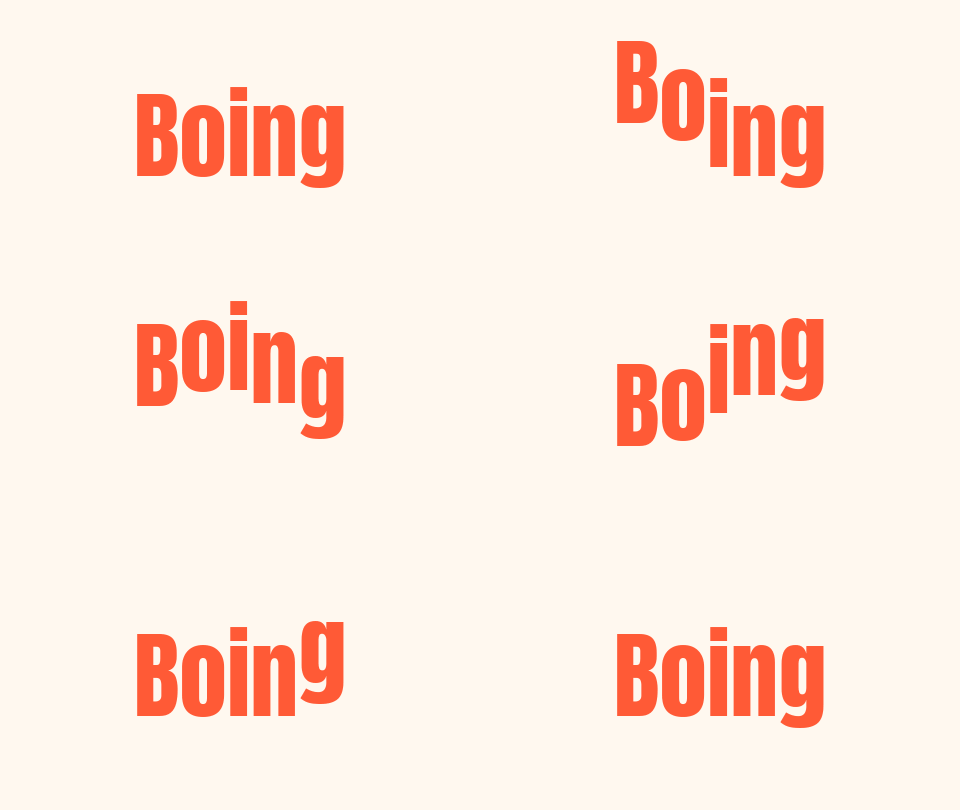 OriginalMP4
A 16-frame GIF that lasts 0.8 seconds. Its frames are 50 ms apart, so the tool picks 20 fps. A video under one second is padded by repetition, so the clip plays twice and the MP4 lasts 1.6 seconds.Settings usedH.264 video at 20 fps, 480 × 270 px, plays 2× in the file, transparent areas filled with #ffffff.GIF 34 KB (480 × 270 px) → MP4 17 KB (480 × 270 px)  OriginalMP4
A photo-like meme GIF of 16 frames at 10 fps, repeated three times. Photographic detail is where video compression gains most over a GIF, which has to store each frame with at most 256 colours.Settings usedH.264 video at 10 fps, 320 × 320 px, plays 3× in the file, transparent areas filled with #ffffff.GIF 719 KB (320 × 320 px) → MP4 168 KB (320 × 320 px)  OriginalMP4
A scrolling banner of 57 frames, 40 ms apart, so the tool picks 25 fps. The banner is 480 by 120 and played twice. Both sides were already even, so nothing was resized.Settings usedH.264 video at 25 fps, 480 × 120 px, plays 2× in the file, transparent areas filled with #ffffff.GIF 215 KB (480 × 120 px) → MP4 83 KB (480 × 120 px)  OriginalMP4
A sticker GIF with a transparent background. Video cannot hold transparency, so the background colour is set to cream and the bear is drawn on it. Played twice at 10 fps.Settings usedH.264 video at 10 fps, 320 × 320 px, plays 2× in the file, transparent areas filled with #fff8ef.GIF 356 KB (320 × 320 px) → MP4 96 KB (320 × 320 px)
How a GIF becomes an MP4
A GIF stores each frame with its own delay, and delays can differ from frame to frame. A video has one fixed frame rate. The tool looks at the typical delay in your GIF, takes the nearest of 10, 12, 15, 20, 25 and 30 frames per second, and then decides which GIF frame is on screen at every tick of that clock. A 100 ms frame at 20 fps appears for two video frames, and a frame that lasts less than a tick can be skipped. You can override the choice with the frame rate menu.
The frames are then handed to your browser's H.264 encoder through WebCodecs, and the pieces are written into an MP4 file. The bitrate is chosen from the picture size and the frame rate, and the codec level is chosen from the picture size so the encoder accepts it. Both sides of the video are made even, because H.264 stores colour at half resolution: an odd side grows by one pixel, and very large GIFs are scaled down to at most 1920 pixels on the long side.
Why repeat the loop in the MP4
A GIF repeats forever by itself. An MP4 does not carry that instruction in a way most players follow, so a three second GIF becomes a three second video that stops. The Repeat the loop setting writes the clip into the file one to ten times. Pick the number that gives the length you want, and let the player or the page loop the file if it can.
Very short GIFs are a special case. A video of a fraction of a second can be ignored or cut off by players, so when one pass lasts less than one second the tool repeats it until the video reaches one second, and tells you so under the result. The total length is capped at 60 seconds, and the tool shows the numbers when a setting would go over.
GIF or MP4: which to keep
Keep the GIF where a GIF is required, for example in places that only accept images, or where you need the loop to run with no controls at all. Use the MP4 where video is accepted and size matters. Photographic or gradient-heavy GIFs usually shrink a lot as video, because the video encoder compares neighbouring frames and does not limit each frame to 256 colours. Flat, simple GIFs gain less, and the page always shows both real file sizes so you can see for yourself.
An MP4 has no sound here, because a GIF has none, and it has no transparency. If your GIF has see-through areas, choose the background colour that matches where the video will be shown. The conversion changes the container and the codec, not the pictures: the frames are the ones in your GIF.
Related tools
These browser tools help before or after you make the video.
- GIF compressor: make the GIF itself smaller when you still need a GIF.
- GIF resizer: set an exact width and height before you convert.
- Video to GIF: go the other way and turn an MP4 or WebM into a GIF.
When GIF to MP4 helps
A feed that plays video but not GIFs
Some apps play video inline and treat GIFs as heavy images. An MP4 fits there.
A large GIF that has to be lighter
A photo-like GIF often becomes a much smaller video, and the page shows the saving.
A page that autoplays background loops
A muted, looping video element is a common way to show a short animation on a web page.
A clip to edit in a video editor
Editors take MP4 files at a fixed frame rate more readily than GIFs.
A sticker on a coloured background
Choose the background colour and the transparent GIF becomes a video that matches the page.
How this tool works and its limits
This is what the converter does with your file, and where it stops.
- Your file never leaves your device. The GIF is decoded and the MP4 is written in your browser, with no upload and no account.
- GIFs up to 25 MB are accepted, and the GIF must fit the site limit of 300 frames and 30 seconds of playing time. With repeats the video can be up to 60 seconds long.
- The video is H.264 in an MP4 container, with no audio and no transparency. Transparent areas are filled with the colour you pick.
- The frame rate is one of 10, 12, 15, 20, 25 or 30. Frames are repeated or skipped to keep the timing, so a GIF with very uneven delays is smoothed to a steady rate.
- Both sides are made even, and a picture larger than 1920 pixels on its long side is scaled down. Resize the GIF first if you need an exact video size.
- The encoder is your browser's. If it has no H.264 encoder, the page says what is missing and stops. It does not quietly give you a WebM file instead.
- We built and tested the tool in current Chrome. The check below asks your own browser what it supports.
Does your browser support this?
This list is checked against the browser you are using right now, by asking it directly. It is not a guess from the browser name.
- H.264 video encoding (WebCodecs): checking
- Background encoding (Web Workers): checking
Questions, answered
How do I convert a GIF to an MP4?
Drop the GIF above, check the frame rate and the number of repeats, and press Convert to MP4. The video plays next to your GIF with both file sizes, and Download saves it.
Why is the MP4 a different length from my GIF?
You may have asked for repeats, or the GIF may be under one second long, in which case the tool repeats it to reach one second. The line under the settings shows the exact length before you convert.
Will the MP4 loop like the GIF?
Not by itself in most players, which is why the tool can write the loop into the file up to ten times. On a web page you can also set the video element to loop.
Is the MP4 smaller than the GIF?
Often, especially for photo-like GIFs, but not always. Flat GIFs with few colours can already be small. The result always shows both real sizes, so you can check.
What happens to transparency?
MP4 video has no transparency. Transparent areas are filled with the background colour you choose, so pick the colour of the place where the video will be shown.
Why does it say my browser cannot make an MP4?
The page uses your browser's own H.264 encoder through WebCodecs. If the browser does not have one, the message names what is missing. Try the current Chrome. There is no WebM fallback.
Related tools
Other tools you may need next.
 GIF CompressorFreeMake a GIF smaller: pick a level or a target size such as 256 KB.
 GIF ResizerFreeResize a GIF to an exact width and height, a percentage or a square emoji.
 Video to GIFFreeTrim an MP4 or MOV clip, pick a frame rate and width, and make a GIF in your browser.
 MOV to GIFFreeConvert an iPhone or QuickTime MOV to a GIF, with help for HEVC and HDR clips.