GIF to WebP converter
Drop a GIF and get an animated WebP with the same frames and timing. A quality slider sets the detail, transparency is kept, and only the part of each frame that changed is stored. The page shows the GIF's size next to the WebP's, so you see what you really saved. Nothing is uploaded.
Free · no sign-up · runs in your browser
GIF only · up to 25 MB · up to 300 frames and 30 s · nothing is uploaded
Drop a GIF here
Your WebP appears here.
How to use it
Drop your GIF
Drop a .gif file onto the box or click to choose one. Files up to 25 MB, 300 frames and 30 seconds of playing time are accepted.
Choose quality and width
Set the quality from 1 to 100 and pick the original width or a smaller one. The line under the width shows the size of the result.
Decide about transparency
If the GIF has see-through pixels they are kept by default. Switch it off to fill them with a colour of your choice.
Convert and download
Press Convert to WebP. The WebP appears next to the GIF with both sizes and the frame count, and Download saves it.
Examples made with this tool
These WebP files were made from GIFs we already use on this site, by the same writer the tool uses. The frame images come from the Skia library's WebP encoder in our script (your browser uses its own), and each file was read back through this site's WebP reader to check the frame count and timing. The numbers on each card are the real ones.
 Original
 WebP
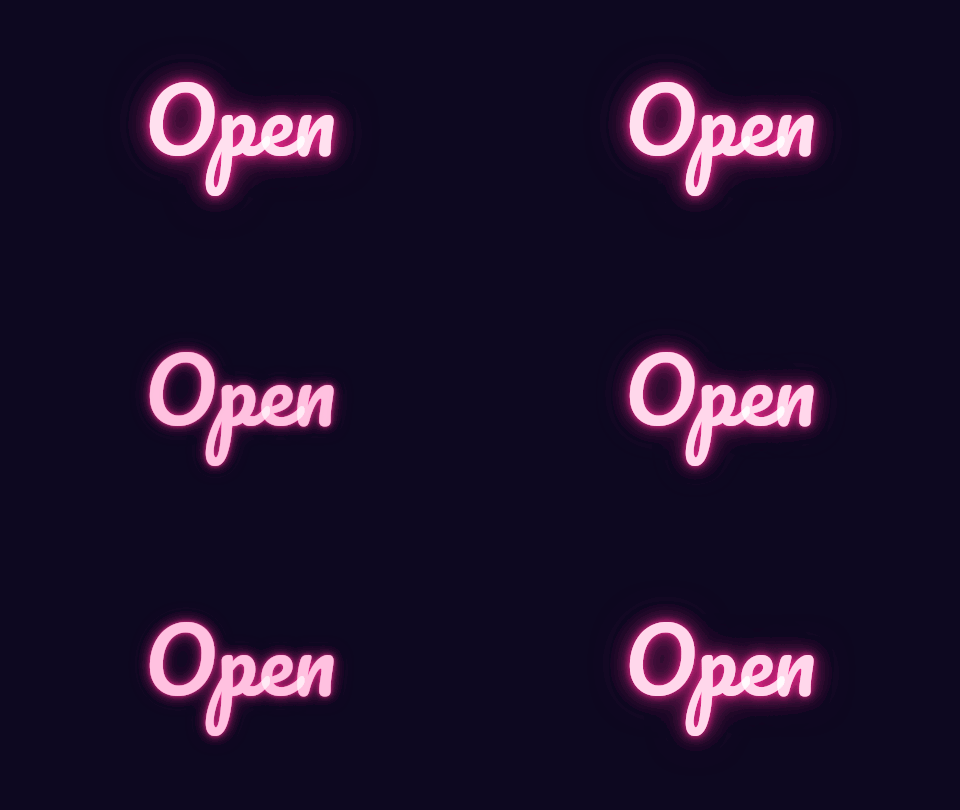
A 12-frame neon sign at quality 75. Glow and soft gradients are what GIF handles worst and lossy WebP handles best, so this is where the file shrinks the most.Settings usedAnimated WebP at quality 75, 480 px wide, transparency not present.GIF 130 KB (480 × 270 px) → WebP 33 KB (480 × 270 px)  Original
 WebP
A sticker GIF with a transparent background at quality 80. The transparency is stored in the WebP's own alpha data, so the edges are soft instead of on or off.Settings usedAnimated WebP at quality 80, 320 px wide, transparency kept.GIF 356 KB (320 × 320 px) → WebP 161 KB (320 × 320 px) 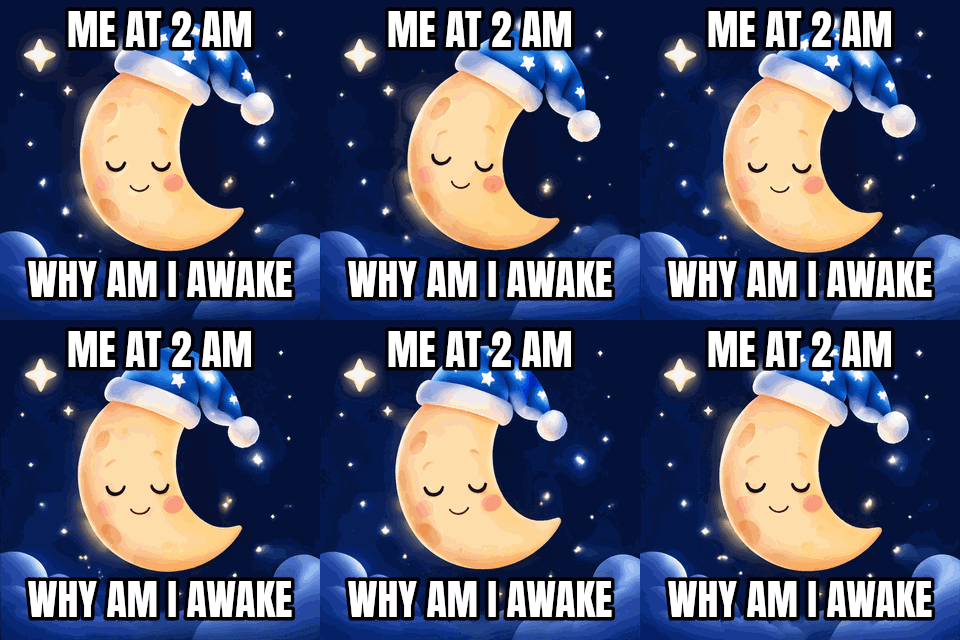 Original
 WebP
Quality 50 and a width of 240 px instead of 320. Both settings trade detail for size, so this is the lightest of the four. Look at the caption text to judge whether it is still readable enough.Settings usedAnimated WebP at quality 50, 240 px wide, transparency not present.GIF 320 KB (320 × 320 px) → WebP 91 KB (240 × 240 px)  Original
 WebP
A scrolling banner changes almost every pixel in every frame, so there is little to skip and the saving is modest. Flat colours with hard edges are already friendly to GIF.Settings usedAnimated WebP at quality 70, 480 px wide, transparency not present.GIF 215 KB (480 × 120 px) → WebP 183 KB (480 × 120 px)
How the WebP is built
An animated WebP is a container with a header that says the canvas size and whether there is transparency, a block that sets the loop, and one block for each frame. Each frame block holds the frame's position, its size, how long it shows, and the image data. This page writes that container itself, in the browser, and asks your browser's encoder only for the image data of each frame.
The frame image can come back in three shapes: a lossy picture, a lossless one, or a lossy picture with a separate transparency layer. The writer reads all three and puts the pieces into the frame block. Positions in a WebP are stored in steps of two pixels, so every frame starts on an even pixel, and each duration is stored in milliseconds.
Only the changed part of each frame
After the first frame, the tool compares each frame with the one before it and finds the smallest rectangle that contains every changed pixel. Only that rectangle is encoded, and the player puts it on top of what is already on screen. A bouncing object on a still background means small rectangles and a small file.
A frame that changes nothing is not written at all. Its time is added to the frame before it, so the animation lasts exactly as long as the GIF did. The result tells you when this happened. A scrolling banner or a video-like GIF changes the whole picture every frame, and then there is little to skip.
Is a WebP smaller than the GIF
WebP is often smaller than GIF, because GIF is limited to 256 colours per frame and WebP compresses photographic detail and gradients far better. That does not always happen. A flat, simple GIF can already be tiny, and a high quality setting can make the WebP larger than the GIF it came from.
That is why the page always shows the real numbers for your file, before and after. If the WebP is not smaller, lower the quality or the width, or keep the GIF. In Chrome, quality 100 writes lossless frames, and for a GIF with few colours that can come out about as large as the GIF; other browsers may treat the top of the slider differently.
Related tools
These browser tools help with the same file before or after the conversion.
- WebP to GIF: go back the other way when a place only takes GIF.
- GIF compressor: shrink the GIF itself when you must keep the GIF format.
- MP4 to WebP: start from a video instead and save it straight to an animated WebP.
When GIF to WebP helps
A web page with animated images
Current browsers show animated WebP in an image tag, and the file is often lighter than the GIF.
A sticker with soft edges
WebP keeps partial transparency, so edges look smoother than the on or off transparency of a GIF.
A photo-like GIF that is too heavy
Gradients and photographic frames are where the format change pays off most.
Testing quality against size
Move the quality slider, convert again, and compare the real sizes of each attempt.
Checking an image pipeline
Make a WebP from a known GIF to test that your own tools read animated WebP.
How this tool works and its limits
This is what the converter does with your file, and where it stops.
- Your file never leaves your device. The GIF is decoded and the WebP is written in your browser, with no upload and no account.
- GIFs up to 25 MB are accepted, and the GIF must fit the site limit of 300 frames and 30 seconds of playing time.
- Each frame is encoded by your browser's own WebP encoder. If it hands back another format, the page says your browser can't encode WebP and stops, rather than saving a wrong file.
- The loop is set to repeat forever. Frame timing is kept in milliseconds as the GIF stored it, and identical frames are merged into the frame before them.
- The result may be larger than the GIF. It depends on the picture and the quality you choose, and the page shows both sizes.
- Animated WebP is shown by current browsers, but some older apps and tools only show its first frame. Keep the GIF for those places.
- We built and tested the tool in current Chrome. The check below asks your own browser whether it can encode WebP.
Does your browser support this?
This list is checked against the browser you are using right now, by asking it directly. It is not a guess from the browser name.
- WebP encoding: checking
- GIF files: checking
Questions, answered
How do I convert a GIF to an animated WebP?
Drop the GIF above, choose a quality and a width, and press Convert to WebP. The WebP appears beside the GIF with both file sizes, and Download saves it.
Does it keep transparency?
Yes, by default. A WebP has a real alpha channel, so transparent pixels stay transparent. You can switch it off and fill the background with a colour instead.
Why is my WebP not smaller?
Some GIFs are already small, especially flat ones, and a high quality setting costs bytes. Lower the quality or the width, then compare the sizes again.
What does the quality slider do?
It is passed to your browser's WebP encoder. Lower values give a smaller file with softer detail and more blocky areas, so check the result by eye before you use it.
Will every app show the animation?
Current browsers do. Some older apps show only the first frame of an animated WebP. If the place you are uploading to still asks for GIF, keep the GIF.
Why does it say my browser cannot encode WebP?
The page uses your browser to encode each frame. Some browsers return a PNG when asked for WebP. Try Chrome, or another browser that can save canvas images as WebP.
Related tools
Other tools you may need next.
 GIF CompressorFreeMake a GIF smaller: pick a level or a target size such as 256 KB.
 GIF ResizerFreeResize a GIF to an exact width and height, a percentage or a square emoji.
 Video to GIFFreeTrim an MP4 or MOV clip, pick a frame rate and width, and make a GIF in your browser.
 MOV to GIFFreeConvert an iPhone or QuickTime MOV to a GIF, with help for HEVC and HDR clips.