Transparent GIF maker
Turn one colour of a GIF transparent everywhere it appears. Pick the colour with the eyedropper or type a hex value, set how close a colour must be, and choose a matte colour for the soft edges. A second tab, From PNG images, builds a transparent animated GIF from a sequence of PNG files and keeps their transparency. Nothing is uploaded.
Free · no sign-up · runs in your browser
GIF only · up to 25 MB · up to 300 frames · nothing is uploaded
The preview appears here.
Your new GIF appears here.
PNG only · up to 60 files of 10 MB · nothing is uploaded
Your PNG frames
Add PNG files to build the sequence.
Add two or more PNGs to preview the sequence.
Your new GIF appears here.
How to use it
Choose a tab and add your files
Use From a GIF to key a colour out of an existing GIF, or From PNG images to build a GIF from PNG frames. Drop the file or files onto the box.
Pick the colour
Click the colour you want gone in the frame, or type a hex value. The tool starts with the most common colour along the edge of the picture.
Set tolerance, soft edge and matte
Tolerance is how far a colour can be from the picked one and still go. Soft edge fades the pixels just beyond it. The matte is the colour of the page the GIF will sit on, used to blend soft edges.
Make it transparent
Press Make transparent GIF, or Make GIF from PNGs on the other tab. The result appears next to the preview, and Download saves it.
Examples made with this tool
Each example makes one of our own GIFs transparent, or builds a transparent GIF from PNG frames. The original is on the left and the result is on the right, on a checkerboard.
 Original
 Transparent GIF
The page behind the cat is near white, and so is its fur. This tool removes that colour everywhere, so the fur becomes transparent too and the checkerboard shows through the cat. If you want the fur kept, use the background remover instead.Settings usedColour #f8f7f7 made transparent everywhere, tolerance 30, soft edge 20, matte #ffffff. Output 320 × 320 px.GIF 337 KB (320 × 320 px) → GIF 238 KB (320 × 320 px), 16 frames  Original
 Transparent GIF
A yellow emoji on a near-white page. Nothing inside the emoji is close to white, so removing white everywhere gives the same result as removing the background. Tolerance 35, soft edge 25.Settings usedColour #fefefe made transparent everywhere, tolerance 35, soft edge 25, matte #ffffff. Output 320 × 320 px.GIF 366 KB (320 × 320 px) → GIF 304 KB (320 × 320 px), 16 frames 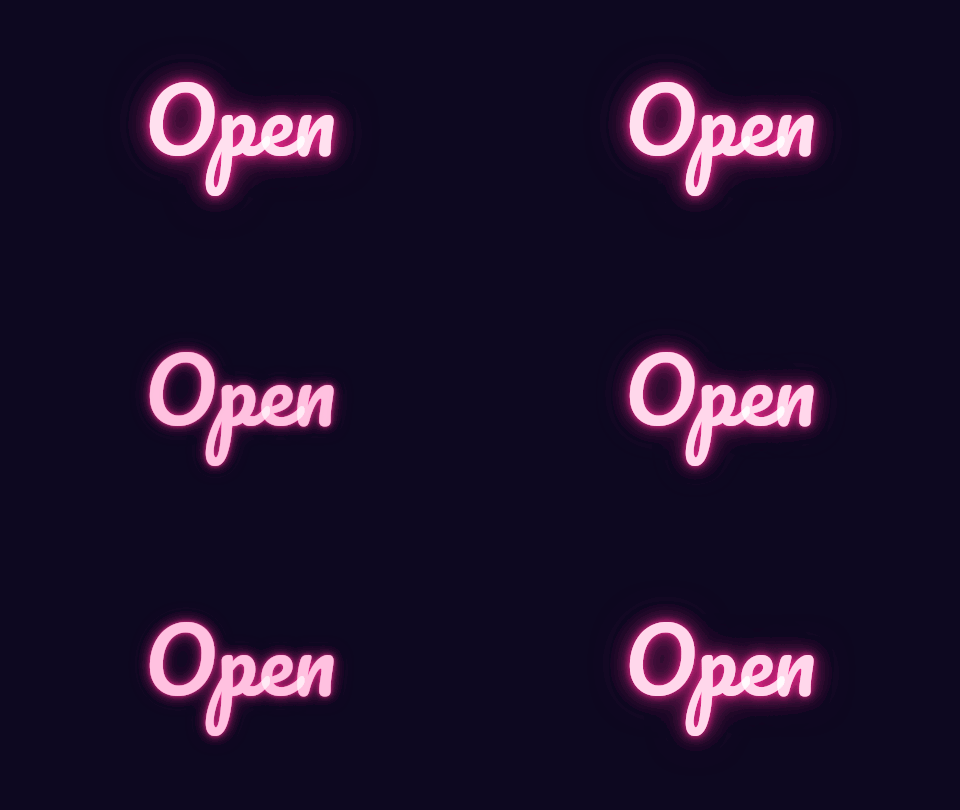 Original
 Transparent GIF
A dark page with a glowing sign. The dark colour is keyed out and the soft edge fades the glow into the clear area. The matte is set to the dark colour of the page the sign will sit on, so the faded glow blends in instead of showing a pale fringe.Settings usedColour #0d0820 made transparent everywhere, tolerance 25, soft edge 30, matte #17141f. Output 480 × 270 px.GIF 130 KB (480 × 270 px) → GIF 80 KB (480 × 270 px), 12 frames  Original
 Transparent GIF
Four PNG files with transparent backgrounds, saved from frames 1, 5, 9 and 13 of one of our transparent GIFs, joined at 200 ms each. The transparency of the PNGs carries over to the GIF.Settings used4 PNG frames of 200 ms each, transparency kept, matte #ffffff. Output 320 × 320 px.4 PNGs 219 KB (320 × 320 px) → GIF 89 KB (320 × 320 px), 4 frames
Make one colour transparent: how it works
The colour key looks at every pixel of every frame. A pixel whose colour is within the tolerance of the picked colour becomes transparent, wherever it is in the picture. Distance is measured in red, green and blue, so a tolerance of 0 removes only the exact colour, and higher values take in slightly different shades. Pixels just beyond the tolerance, within the soft edge range, become partly transparent and have the picked colour divided out of them, so they do not keep a coloured fringe.
Choose a tolerance that removes the whole flat colour without taking neighbouring shades of the subject. Compressed GIFs often hold a few close shades of one colour, which is why a tolerance of 0 can leave speckles on a background that looks flat.
Which one do I need? Transparent GIF maker or background remover
Use this tool when one colour should disappear everywhere: a green screen with gaps in it, a solid page where you also want the holes between letters cleared, or an animated icon with the same flat colour behind it and inside it. It does not care where the colour is.
Use the background remover when only the background should go and the subject contains the same colour, such as a white cat on a white page. The background remover starts at the edge and stops at the subject, so white fur stays. If you are not sure, run both on the same GIF and compare.
Why GIF transparency is on or off
A GIF can mark one palette colour as transparent. A pixel is either that colour, and you see through it, or it is an ordinary opaque colour. There is no half-transparent pixel. The soft edge of a keyed picture therefore has to become one or the other: pixels that are at least half opaque are kept and blended with the matte colour, and the rest become transparent.
The matte colour should be the colour of the page the GIF will sit on. A GIF keyed from white and placed on a dark page can show a pale fringe where soft pixels were blended with white. Set the matte to the dark colour and the fringe disappears. If the page colour varies, pick a middle colour, or keep the soft edge low so fewer pixels are blended.
From PNG images: a transparent animated GIF
The second tab builds an animated GIF from PNG files in the order you set. PNG transparency is kept: pixels that are fully or mostly transparent in a PNG are transparent in the GIF, and partly transparent ones are blended with the matte colour. All frames are placed on the size of the first PNG, contained so nothing is cut off, and each lasts the same time, from 20 ms to 10 seconds.
Use up to 60 PNG files of 10 MB or less. The sequence plays forever by default, and you can set it to play once. If you only want to convert PNG files one by one into GIFs, the PNG to GIF tool does that, and the image to GIF tool adds fades and different frame times for photos.
Related tools
These tools work well with a transparent GIF.
- GIF background remover: remove only the background that touches the edge and keep same-coloured parts inside the picture.
- PNG to GIF: convert PNG files one by one, keeping their transparency.
- GIF compressor: bring the file size down.
When a transparent GIF helps
A GIF on a coloured page
Remove the white box around a GIF so it sits on any background colour.
A green-screen clip
Take out a flat green or blue backdrop from a short clip.
Stickers and reactions
Make a sticker-style GIF transparent so it can sit on top of anything.
An animated icon from PNG frames
Join PNG frames exported from a design tool into an icon with a clear background.
Overlays for slides and videos
Prepare an animated overlay that shows only the parts you keep.
How this tool works and its limits
This is what the tool does, and where it stops.
- Your files never leave your device. They are opened, processed and re-encoded in your browser, with no upload and no account.
- GIFs up to 25 MB and 300 frames are accepted, and PNG sequences take up to 60 files of 10 MB each. The output is capped at 300 frames, 30 seconds and 1024 px on the longer side.
- Tolerance runs from 0 to 120 and soft edge from 0 to 60, as distances in RGB colour. The colour is the same for every frame.
- GIF transparency is on or off. Soft edges are blended with the matte colour you choose, so set it to the colour of the page the GIF will sit on.
- The colour key cannot tell the subject from the background by position. If the subject contains the colour you remove, that part becomes transparent too. The background remover is built for that case.
- Frames from PNG files are placed on the size of the first PNG, contained and not cropped, and every frame lasts the same time.
- We built and tested the tool in current desktop Chrome. It uses ordinary canvas, workers and image decoding, and the list below checks your own browser live. We have not tested every browser.
Does your browser support this?
This list is checked against the browser you are using right now, by asking it directly. It is not a guess from the browser name.
- GIF files: checking
- Background encoding (Web Workers): checking
Questions, answered
How do I make a GIF transparent?
Drop the GIF, click the colour you want gone, set the tolerance until it disappears in the preview, choose a matte colour, and press Make transparent GIF.
Can I make a transparent GIF from PNG images?
Yes. Use the From PNG images tab, add two or more PNG files, put them in order, set the time per frame and press Make GIF from PNGs. Transparency in the PNGs is kept.
Why is there a light fringe around my subject?
GIF transparency is on or off, so soft edge pixels are blended with the matte colour. Set the matte to the colour of the page the GIF will sit on, or lower the soft edge.
Why did parts inside my subject turn transparent?
This tool removes the colour everywhere, including inside the subject. Lower the tolerance, or use the background remover, which only removes what is connected to the edge.
How is this different from the background remover?
This tool removes one colour everywhere in the picture. The background remover removes only the background that is connected to the edge. The section above helps you choose.
Is my file uploaded?
No. Your GIF or PNG files are processed on your device. Nothing is sent to a server and you need no account.
Related tools
Other tools you may need next.
 GIF background removerFreeRemove a plain or green background from a GIF, frame by frame, and save a transparent GIF.
 PNG to GIFFreeConvert PNG files to GIFs in a batch, one GIF per PNG, with transparency kept.
 GIF CompressorFreeMake a GIF smaller: pick a level or a target size such as 256 KB.
 GIF Speed ChangerFreeSpeed up, slow down or reverse any GIF and keep its timing.