GIF filter online
Add a filter to an animated GIF in your browser. Choose a preset, such as black and white, sepia, invert, vintage, cool, warm, high contrast or posterize, and fine-tune it with sliders for brightness, contrast, saturation and hue. The preview plays the filtered GIF as you change the settings, and a switch shows the original for comparison. Nothing is uploaded.
Free · no sign-up · runs in your browser
GIF only · up to 25 MB · up to 300 frames · nothing is uploaded
The preview appears here.
Your new GIF appears here.
How to use it
Drop your GIF
Drop a GIF onto the box or click to choose one. Up to 25 MB and 300 frames. It is opened on your device and never leaves it.
Pick a preset
Choose one of the eight presets, or None to use only the sliders. A preset changes the colours of every frame in the same way.
Adjust the sliders
Brightness, contrast, saturation and hue each pass through zero, and they work together with the preset. Switch between Filtered and Original to compare.
Apply and download
Press Apply filter. The new GIF appears next to the preview with its size and dimensions, and Download saves it.
Examples made with this tool
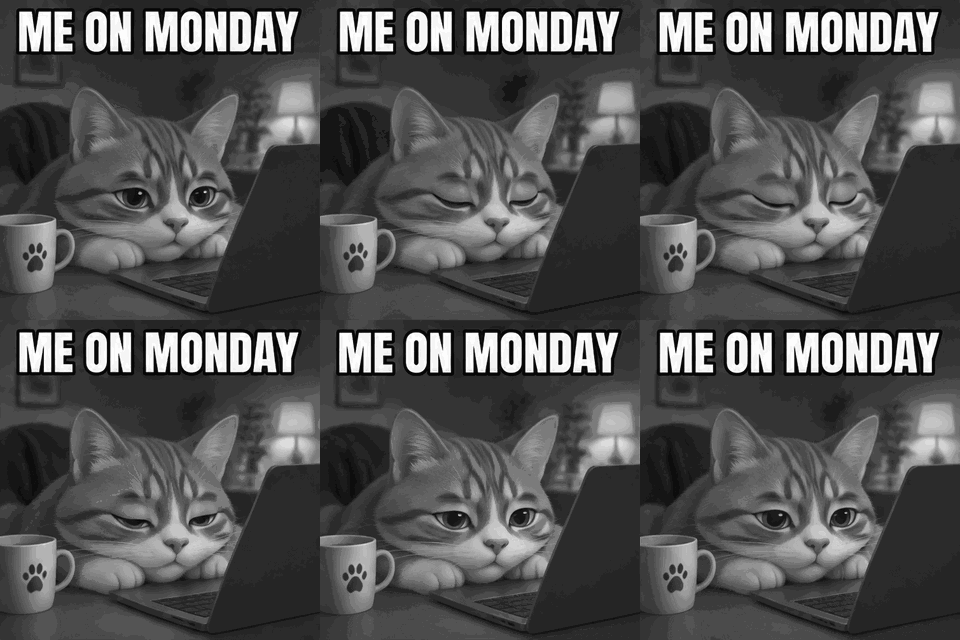
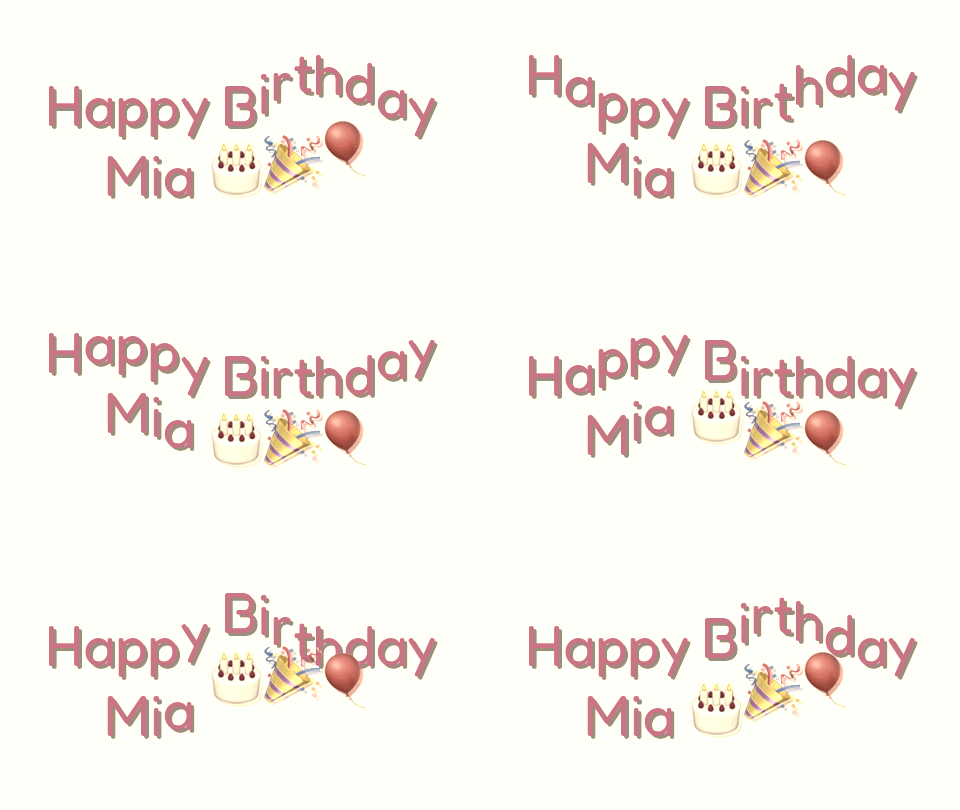
Each example applies a filter to one of our own GIFs. The original is on the left and the filtered GIF is on the right, and the settings line lists the preset and the sliders.
 Original
 Filtered GIF
Black and white on a colour meme. Each pixel's red, green and blue are replaced by its brightness, weighted for how the eye sees colour, so the cat's orange fur turns mid grey while the white text stays white.Settings usedPreset Black and white. Sliders: none. Output 320 × 320 px.GIF 719 KB (320 × 320 px) → GIF 451 KB (320 × 320 px), 16 frames 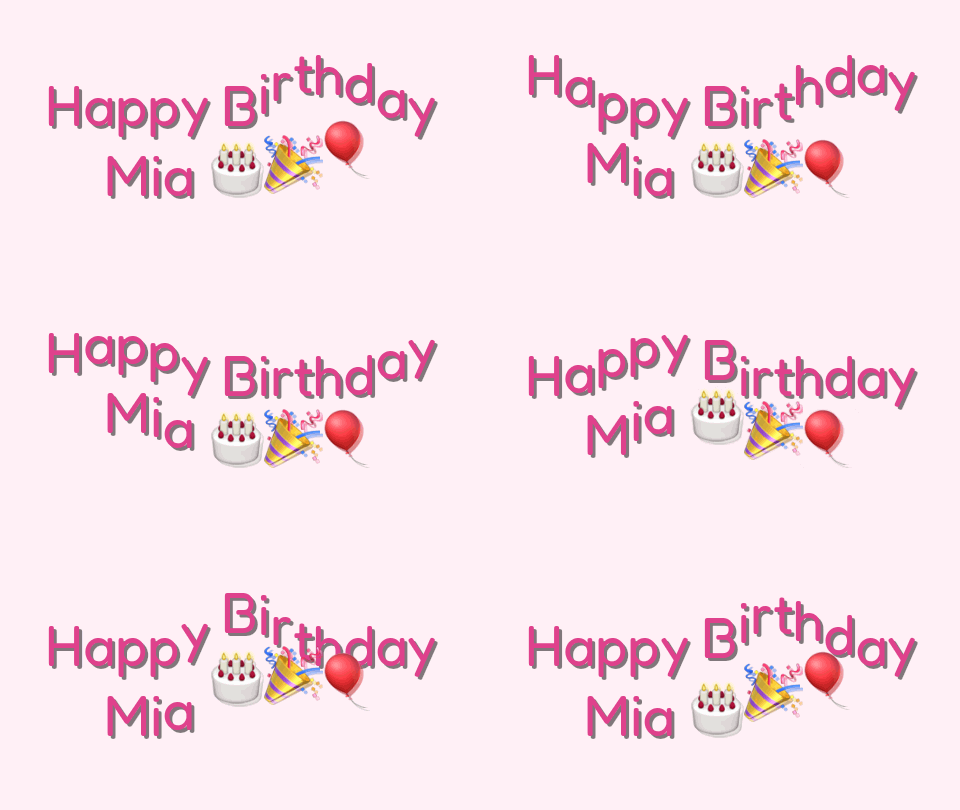 Original
 Filtered GIF
The vintage preset adds a brown tone and lifts the blacks, and contrast is raised by 10. The pink card turns warm and the colours look slightly faded.Settings usedPreset Vintage. Sliders: contrast 10. Output 480 × 270 px.GIF 118 KB (480 × 270 px) → GIF 115 KB (480 × 270 px), 16 frames 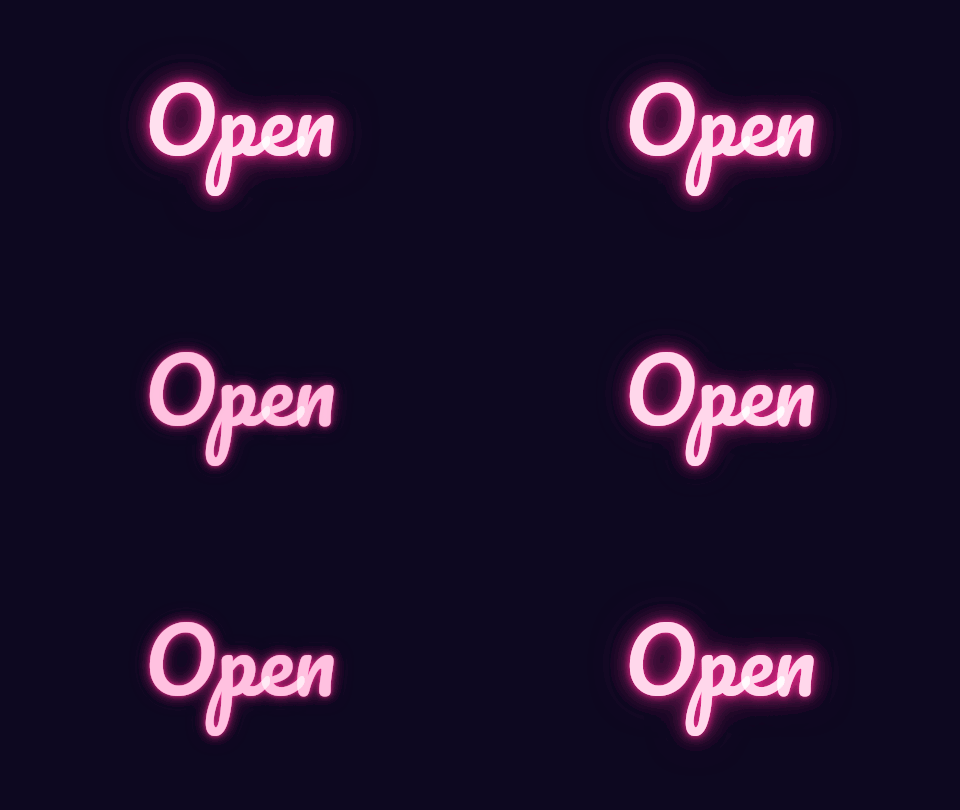 Original
 Filtered GIF
Posterize cuts each colour channel to four levels, and the hue slider at +40 turns the colours around the colour wheel. The soft glow around the sign turns into visible steps. It is a graphic look, and a poor fit for photographs.Settings usedPreset Posterize. Sliders: hue 40°. Output 480 × 270 px.GIF 130 KB (480 × 270 px) → GIF 29 KB (480 × 270 px), 12 frames 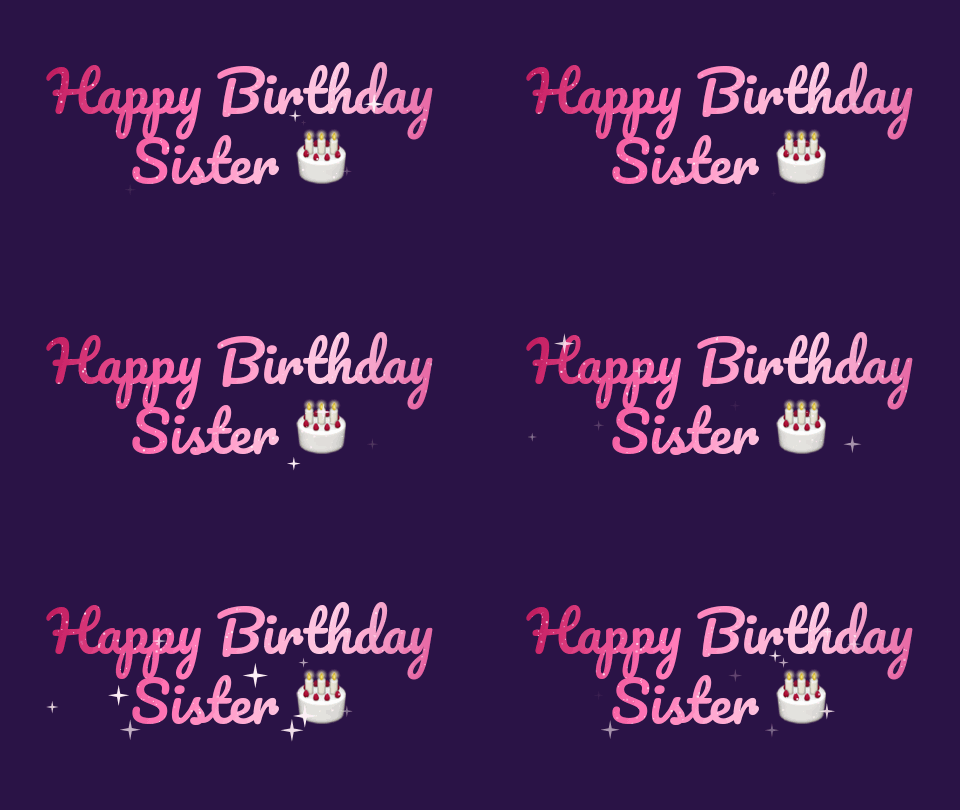 Original
 Filtered GIF
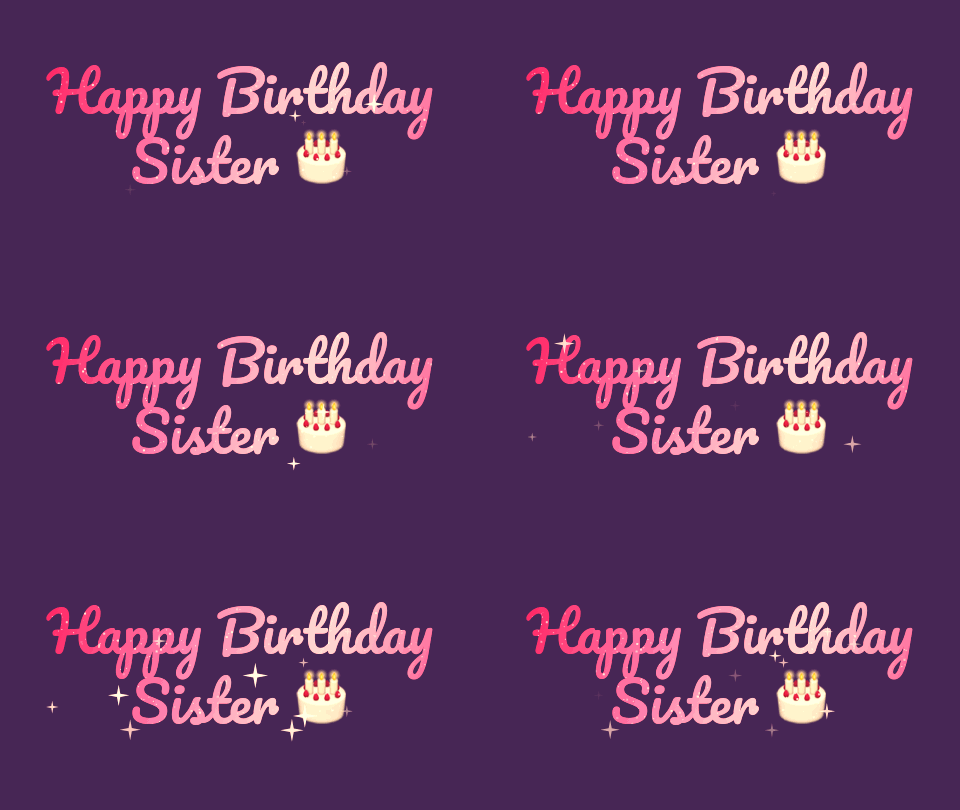
A warm filter with brightness +8 and saturation +15. Red gets a lift and blue is reduced, so the cool purple card moves toward pink and the lettering looks warmer.Settings usedPreset Warm. Sliders: brightness 8, saturation 15. Output 480 × 270 px.GIF 43 KB (480 × 270 px) → GIF 41 KB (480 × 270 px), 12 frames
Presets and sliders: what each one does
Black and white replaces each pixel by its brightness. Sepia mixes the colour channels toward brown. Vintage is a softer sepia with lifted blacks and slightly dimmer whites. Cool leans the picture toward blue and warm toward red. Invert turns every colour into its opposite. High contrast pushes darks darker and lights lighter around mid grey. Posterize keeps four levels per colour channel.
The sliders work after the preset: saturation and hue first, then brightness and contrast. Saturation at minus 100 gives the same result as the black and white preset. Hue turns the colours around the colour wheel in degrees, so red moves toward green or blue.
Why the colours are the same in every browser
Browsers can filter canvas pictures themselves, but support differs between them, and some do not apply those filters reliably. This tool does not depend on that. The colour change is done by the site's own code on the pixels of each frame, so the same settings give the same colours wherever it runs.
That also keeps the preview honest. It runs the same code as the download, on smaller frames. The filtered GIF is then written with one shared palette of up to 255 colours.
Filters and GIF file size
A filter changes colours, and a GIF holds at most 256 of them. Black and white and posterize reduce the number of colours in use and often make the file smaller. Sepia and vintage keep a similar number, and invert and hue changes usually leave the size about the same. Strong brightness or contrast changes can push soft gradients into visible bands.
The After pane shows the real size of the filtered GIF next to the original. If it is too large, run the filtered GIF through the compressor, or resize it first. A filter never changes the shape, the number of frames or the timing.
Related tools
These tools handle what usually comes next.
- GIF speed changer: change the speed after you filter, or reverse the GIF.
- GIF editor: combine a filter with crop, rotate and cut in one list of steps.
- GIF compressor: bring the file size down.
When a filter helps
Matching a page
Tint a GIF toward the colours of a page or a brand.
A black and white clip
Make a colour GIF black and white for a calm, serious or classic look.
A retro look
Use sepia or vintage to make a recent clip look old.
Warming or cooling a clip
Warm up a cold clip or cool down a warm one.
Fewer colours, smaller file
Posterize or go black and white to cut the number of colours in a heavy GIF.
How this tool works and its limits
This is what the filter does, and where it stops.
- Your GIF never leaves your device. It is opened, filtered and re-encoded in your browser, with no upload and no account.
- GIFs up to 25 MB and 300 frames are accepted. The output is capped at 300 frames, 30 seconds and 1024 px on the longer side.
- Brightness, contrast and saturation run from minus 100 to 100, and hue from minus 180 to 180 degrees. The same settings apply to every frame.
- The filter applies to the whole frame. There is no brush or mask. To change only one area, use Blur GIF for a region.
- A GIF has at most 256 colours per picture. The filtered GIF is a new encode with a shared palette, so strong changes to smooth gradients can show bands.
- Transparent GIFs stay transparent. The filter changes colours only, and it never touches transparency.
- We built and tested the filter in current desktop Chrome. It uses ordinary canvas, workers and GIF decoding, and the list below checks your own browser live. We have not tested every browser.
Does your browser support this?
This list is checked against the browser you are using right now, by asking it directly. It is not a guess from the browser name.
- GIF files: checking
- Background encoding (Web Workers): checking
Questions, answered
How do I add a filter to a GIF?
Drop the GIF, choose a preset, adjust the sliders if you like, compare with Original, and press Apply filter. Download saves the filtered GIF.
How do I make a GIF black and white?
Choose the Black and white preset and press Apply filter. You get a black and white GIF with the same frames and timing. Setting saturation to minus 100 gives the same result.
Does the filter work on transparent GIFs?
Yes. Transparent areas stay transparent, and only the colours of the visible pixels change.
Does the filter change the animation?
No. The frames, their order and their delays are the same. Only colours change.
Why does the preview look smaller than the download?
The preview is drawn from smaller frames so it keeps up while you move the sliders. The download is made from the full-size frames with the same settings.
Is my GIF uploaded?
No. The GIF is filtered on your device. Nothing is sent to a server and you need no account.
Related tools
Other tools you may need next.
 GIF Speed ChangerFreeSpeed up, slow down or reverse any GIF and keep its timing.
 GIF CompressorFreeMake a GIF smaller: pick a level or a target size such as 256 KB.
 GIF editorFreeCrop, resize, rotate, cut, change speed and filter one GIF as ordered steps, then export once.
 Add Text to GIFFreeCaption a GIF or short MP4 with several text layers and per-layer frame ranges.