GIF splitter
See every frame of a GIF in a grid with its number and delay, tick the frames you want and download them as a ZIP of PNG or JPG files. Nothing is uploaded.
Free · no sign-up · runs in your browser
GIF only · up to 25 MB · up to 300 frames · nothing is uploaded
Frames
Drop a GIF to see every frame here.
How to use it
Drop your GIF
Drop a GIF onto the box or click to choose one. Up to 25 MB and 300 frames. All frames appear in the grid as thumbnails.
Select the frames
Every frame starts ticked. Use All, None, Every 2nd or Invert, or tick and untick single frames. The count of selected frames is in the heading above the grid.
Pick PNG or JPG
PNG keeps transparency and is lossless. JPG is smaller and needs a background colour and a quality setting.
Download the ZIP
Press Download. The tool saves each selected frame at full size and zips them. Files are named like your-gif-frame-001.png, using each frame's own number.
Examples made with this tool
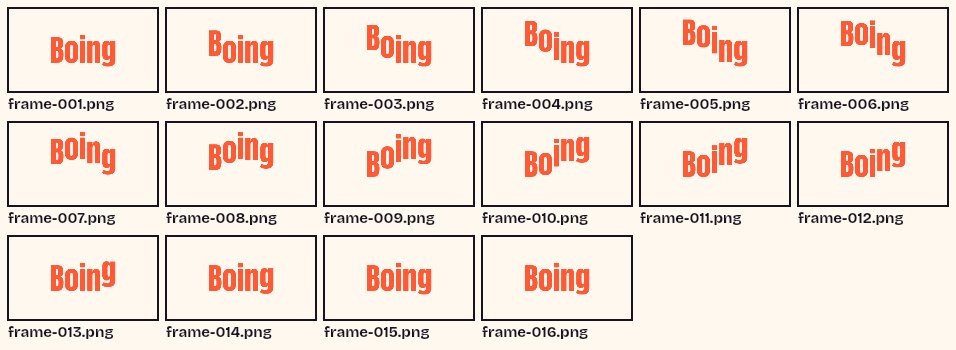
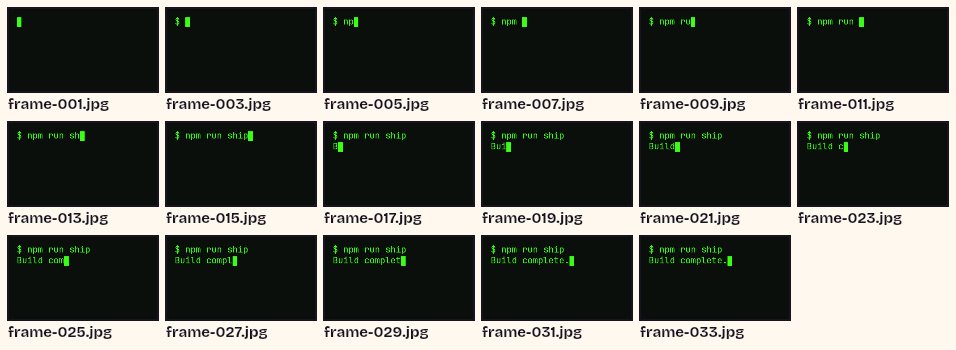
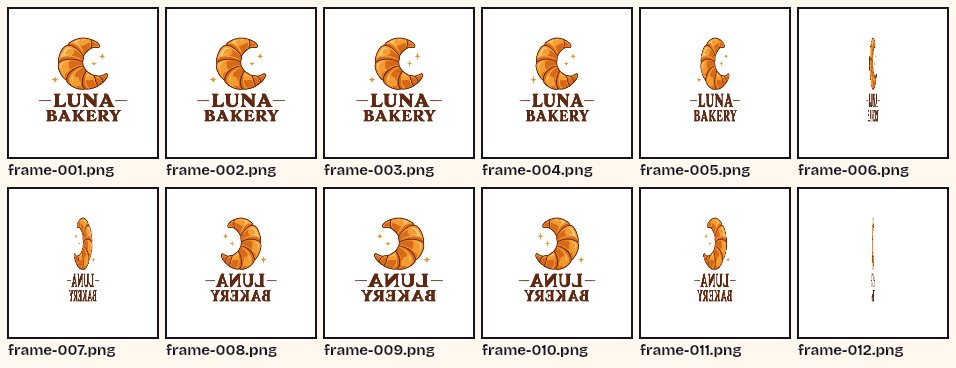
Each example splits one of our own GIFs the way the tool does. The picture on the right is a contact sheet of the files that ended up in the ZIP, with their real file names.
 Original
 ZIP contents
Every frame of a 16 frame GIF as PNG files. With all frames selected you get one file per frame, numbered from 001.Settings usedFrames all 16, saved as PNG files in a ZIP.GIF 34 KB (480 × 270 px) → ZIP of 16 PNG files, 77 KB 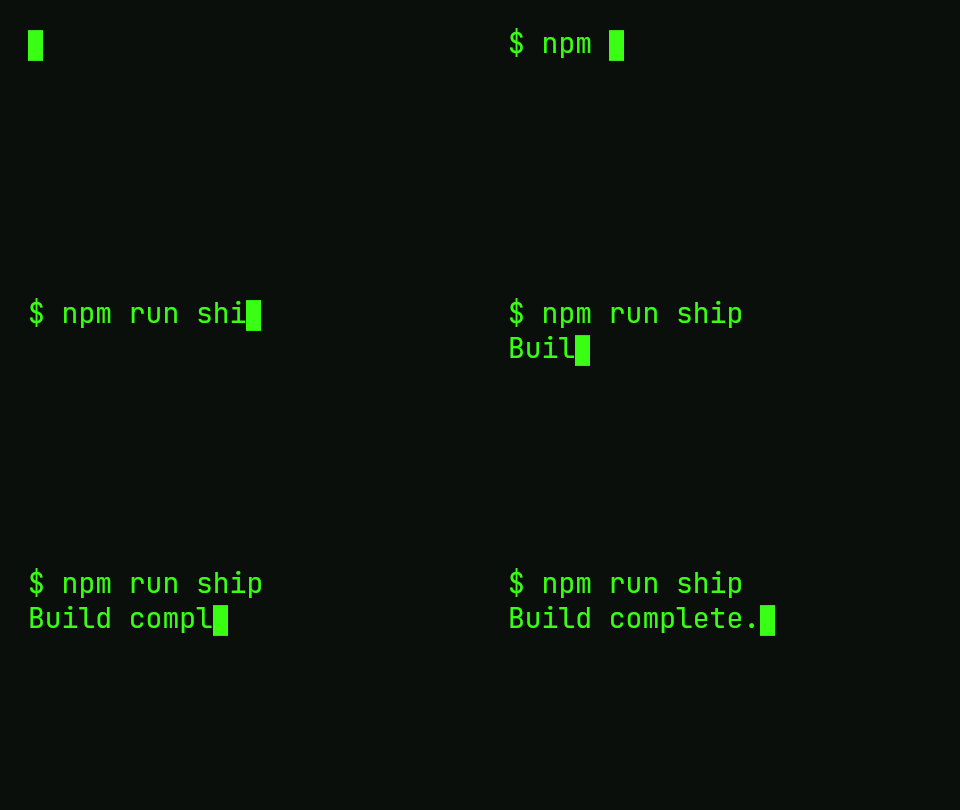 Original
 ZIP contents
Every 2nd frame of a 33 frame typing animation, saved as JPG. The file numbers skip: the files keep their original frame numbers, so you know which frames they are.Settings usedFrames every 2nd (1, 3, 5 and so on), saved as JPG files in a ZIP.GIF 28 KB (480 × 270 px) → ZIP of 17 JPG files, 108 KB  Original
 ZIP contents
Frames 1 to 12 of a spinning logo as PNG files. Select a run of frames when you only need the first part of an animation.Settings usedFrames 1 to 12, saved as PNG files in a ZIP.GIF 123 KB (320 × 320 px) → ZIP of 12 PNG files, 201 KB 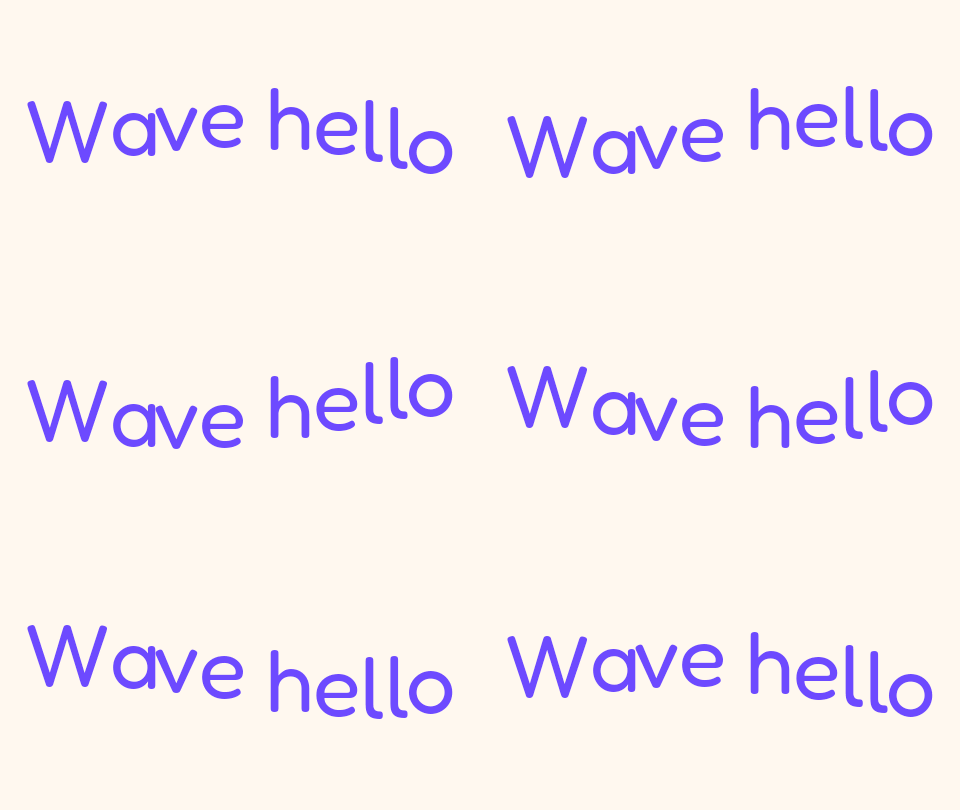 Original
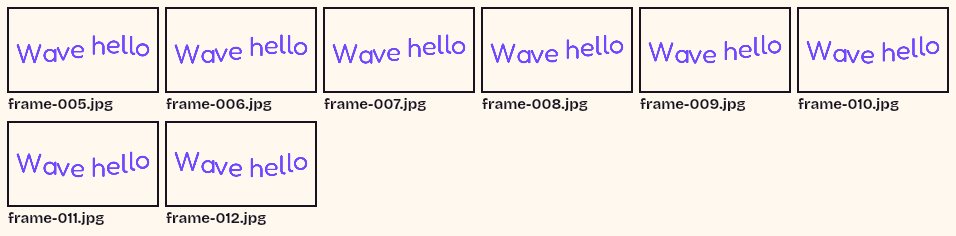 ZIP contents
Frames 5 to 12 saved as JPG at quality 80. JPG files of flat colour are small, so this ZIP is one of the smallest.Settings usedFrames 5 to 12, saved as JPG files in a ZIP.GIF 91 KB (480 × 270 px) → ZIP of 8 JPG files, 72 KB
How to split a GIF into frames
Load the GIF and wait a moment while the thumbnails are drawn; a line under the grid counts them off. Each cell shows the frame, its number and its delay in milliseconds, which tells you how long that frame is on screen. The cells are check boxes, so you can click or tab to them and press Space.
Then press Download. The tool draws each selected frame at its full size, encodes it and puts it in a ZIP. The ZIP is made on your device and handed to your browser as a download, with a name like your-gif-frames-png.zip.
Choose the frames you need
You rarely want every frame. All and None are the two ends. Every 2nd picks frames 1, 3, 5 and so on, which halves the ZIP and is a fast way to thin out a long animation. Invert flips the selection, so you can untick a few frames you do not want and then invert to get exactly those.
The selected frames keep their original numbers in the file names. If you tick frames 4 to 9, the files are called name-frame-004 up to name-frame-009, so they still sort in order and you can match them back to the GIF.
What is in the ZIP
One image per selected frame, named name-frame-001.png (or .jpg), padded to three digits, or more if the GIF has over 999 frames. The ZIP stores the images without extra compression, because PNG and JPG are already compressed, so building it is quick.
Each frame is the complete picture as a browser would draw it at that moment, with earlier frames composited in, not just the part that changed. That is what you want for editing or for a game. PNG frames keep transparency; JPG frames are filled with the background colour you choose.
Other tools for the same GIF
These tools do related jobs when you take a GIF apart.
- GIF to PNG for a single frame: save one frame with a scrubber instead of a grid.
- GIF to sprite sheet: put every frame in one image with a JSON file and CSS.
- Cut GIF: keep a range of frames as a new, shorter GIF instead of separate pictures.
When a GIF splitter helps
Editing frame by frame
Get every frame as an image, retouch the ones you want and rebuild the animation in another tool.
Finding the best still
See all the frames at once and pick the sharpest or funniest to use as a poster.
Game assets
Take an animation apart into numbered images for an engine that wants frames.
Studying an animation
Look at the timing: each cell shows the delay of its frame.
Thinning out a long GIF
Select every second frame, download them and rebuild a lighter animation.
How this tool works and its limits
This is what the splitter does, and where it stops.
- Your GIF never leaves your device. The frames are drawn, encoded and zipped in your browser, with no upload and no account.
- GIFs up to 25 MB and 300 frames are accepted. The grid shows thumbnails of up to 160 px; the files in the ZIP are full size.
- The ZIP is built in memory. A very large GIF with many big frames can take a while and a lot of memory, so there is a progress bar and a Cancel button.
- PNG frames keep transparency. JPG frames have no transparency, so every transparent pixel becomes your background colour.
- Each file is the full composited frame, not only the changed region that the GIF stores internally.
- Frame numbers in the file names are the frame's original position in the GIF, even when you select only some frames.
- We built and tested the tool in current Chrome. The ZIP is a standard file that opens in every operating system.
Does your browser support this?
This list is checked against the browser you are using right now, by asking it directly. It is not a guess from the browser name.
- GIF files: checking
Questions, answered
How do I split a GIF into frames?
Drop the GIF above, keep all the frames ticked, choose PNG or JPG and press Download. You get a ZIP with one numbered image per frame.
Can I choose which frames to export?
Yes. Tick or untick any frame in the grid, or use All, None, Every 2nd and Invert. Only ticked frames go in the ZIP.
What are the files called?
Like your-gif-frame-001.png, with the frame's own number padded to three digits. If you pick frames 4 to 9, the files are numbered 004 to 009.
Do the frames keep transparency?
PNG frames do. JPG cannot hold transparency, so for JPG the transparent areas are filled with the background colour you choose.
How is this different from GIF to PNG?
GIF to PNG saves one frame you scrub to. The splitter shows all frames in a grid and downloads many of them at once as a ZIP.
Are my frames sent to a server when I download the ZIP?
No. Each frame is drawn and the ZIP is assembled inside your browser. The download is created on your own device, with no sign-in and no upload.
Related tools
Other tools you may need next.
 GIF to PNGFreeScrub to one frame of a GIF and save it as a PNG with transparency kept.
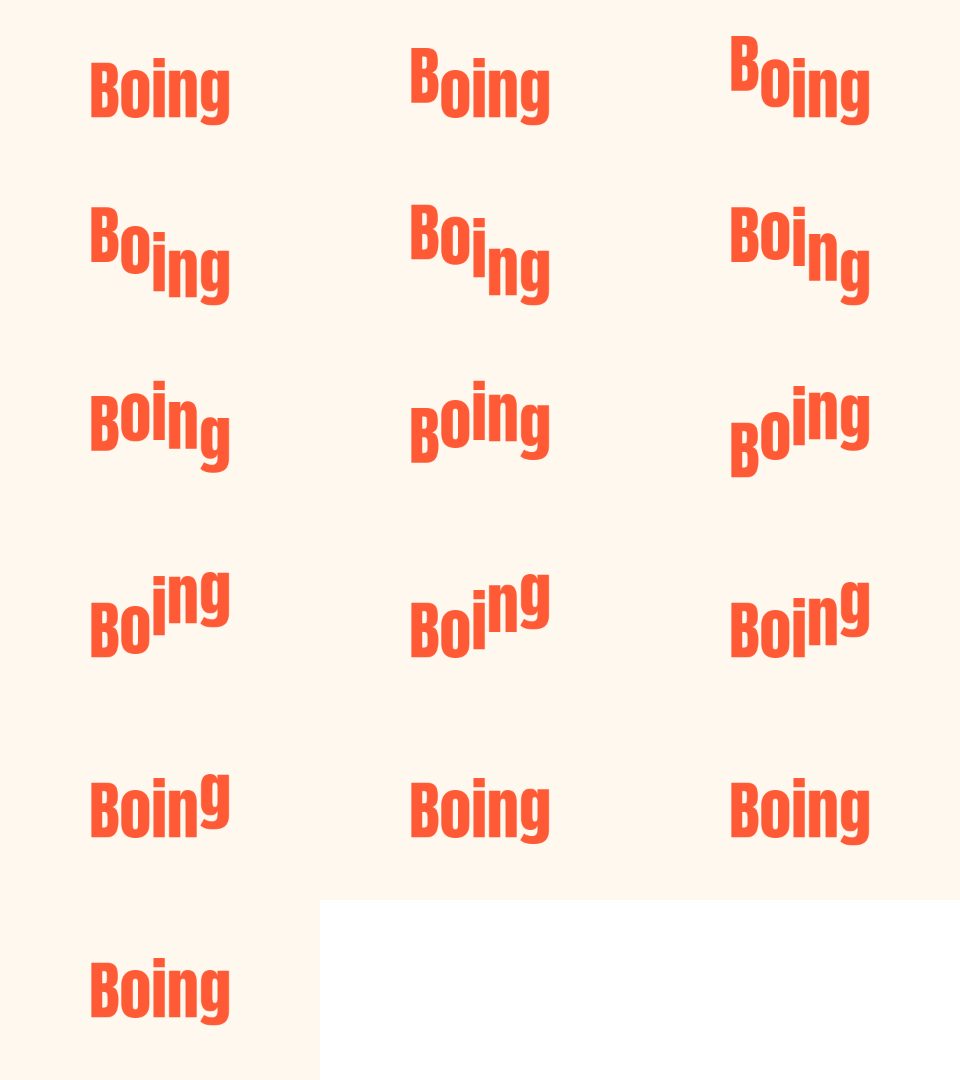 GIF to Sprite SheetFreePut every frame of a GIF in one PNG grid, with a JSON file and a CSS snippet.
 Video to GIFFreeTrim an MP4 or MOV clip, pick a frame rate and width, and make a GIF in your browser.
 MOV to GIFFreeConvert an iPhone or QuickTime MOV to a GIF, with help for HEVC and HDR clips.