Blur GIF online
Blur a whole GIF, or blur or pixelate just one part of it. Drag a box over the area you want to hide, such as a name, a face or a number plate, choose blur or pixelate and how strong it is, and the box stays in the same place on every frame. You can limit the effect to a range of frames. Nothing is uploaded.
Free · no sign-up · runs in your browser
GIF only · up to 25 MB · up to 300 frames · nothing is uploaded
The preview appears here.
Your new GIF appears here.
How to use it
Drop your GIF
Drop a GIF onto the box or click to choose one. Up to 25 MB and 300 frames. It is opened on your device and never leaves it.
Choose a box or the whole GIF
Pick Box to hide one area, or Whole GIF to soften everything. Drag the box and its corners over the picture, or type its position and size.
Choose blur or pixelate
Set the blur radius or the block size and watch the preview. To limit the effect, untick All frames and enter a first and last frame.
Apply and download
Press Apply effect. The new GIF appears next to the preview with its size and dimensions, and Download saves it.
Examples made with this tool
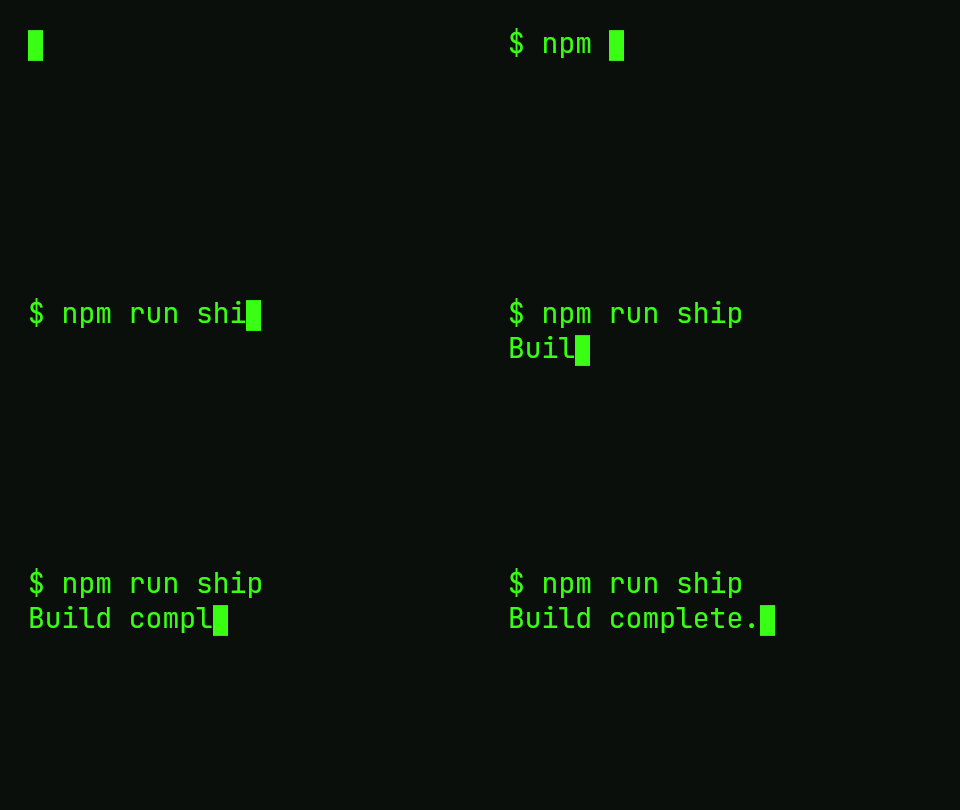
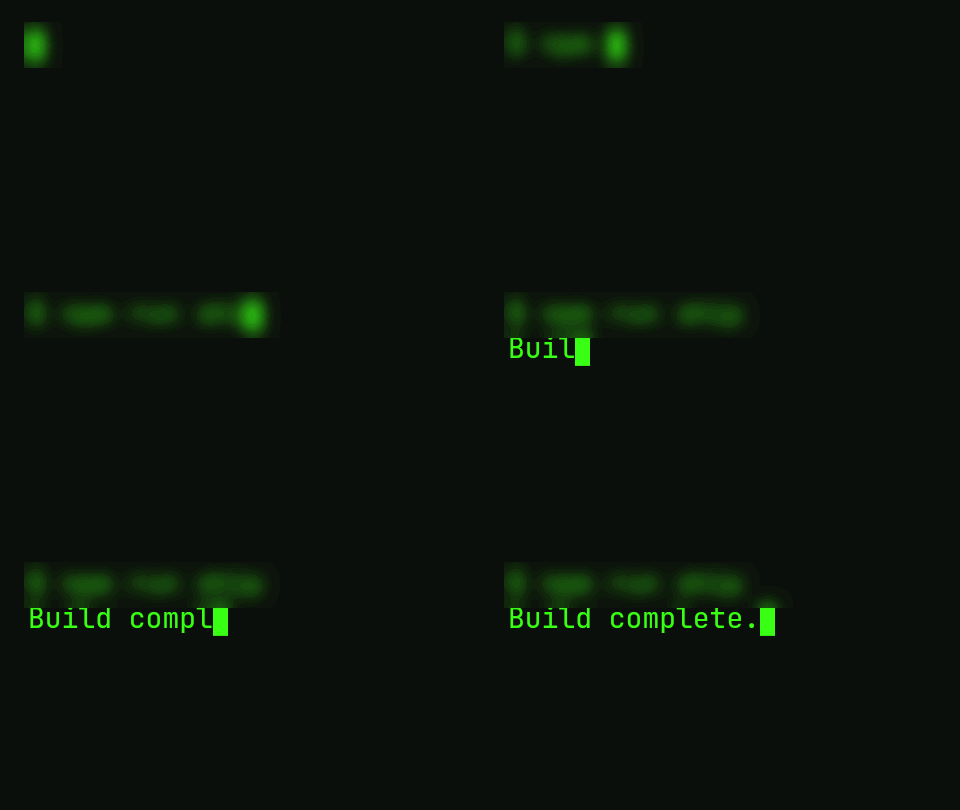
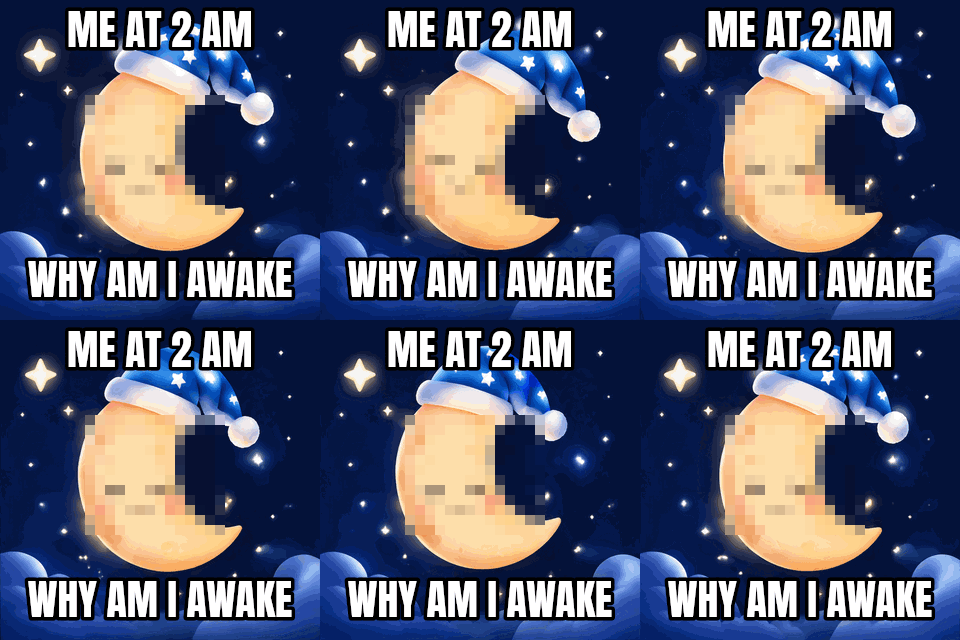
Each example blurs or pixelates one of our own GIFs. The original is on the left and the result is on the right, and the settings line gives the effect, the box and the frames.
 Original
 Blurred GIF
A box blur with radius 8 over the first line of a typing terminal. The box covers all 33 frames, so the line stays hidden while it is typed. The rest of the screen is untouched.Settings usedBlur 8 px on the box 360 × 46 px at x 24, y 22, all frames. Output 480 × 270 px.GIF 28 KB (480 × 270 px) → GIF 49 KB (480 × 270 px), 33 frames 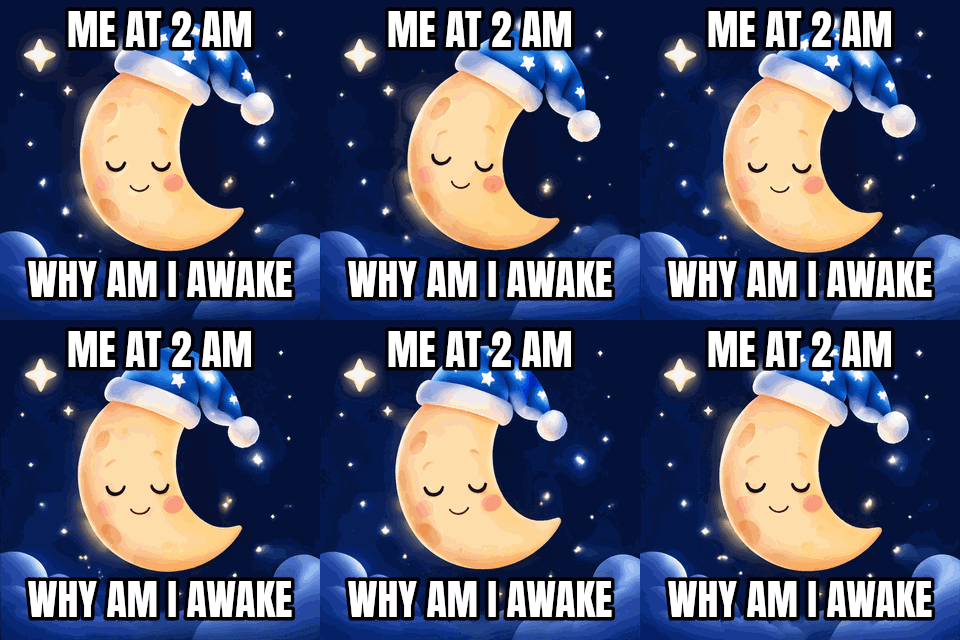 Original
 Blurred GIF
Pixelate with 10 px blocks over the moon's face. Each block takes the average colour of the pixels under it, giving a mosaic. The caption text and the stars outside the box are unchanged.Settings usedPixelate 10 px on the box 140 × 120 px at x 85, y 95, all frames. Output 320 × 320 px.GIF 320 KB (320 × 320 px) → GIF 291 KB (320 × 320 px), 16 frames 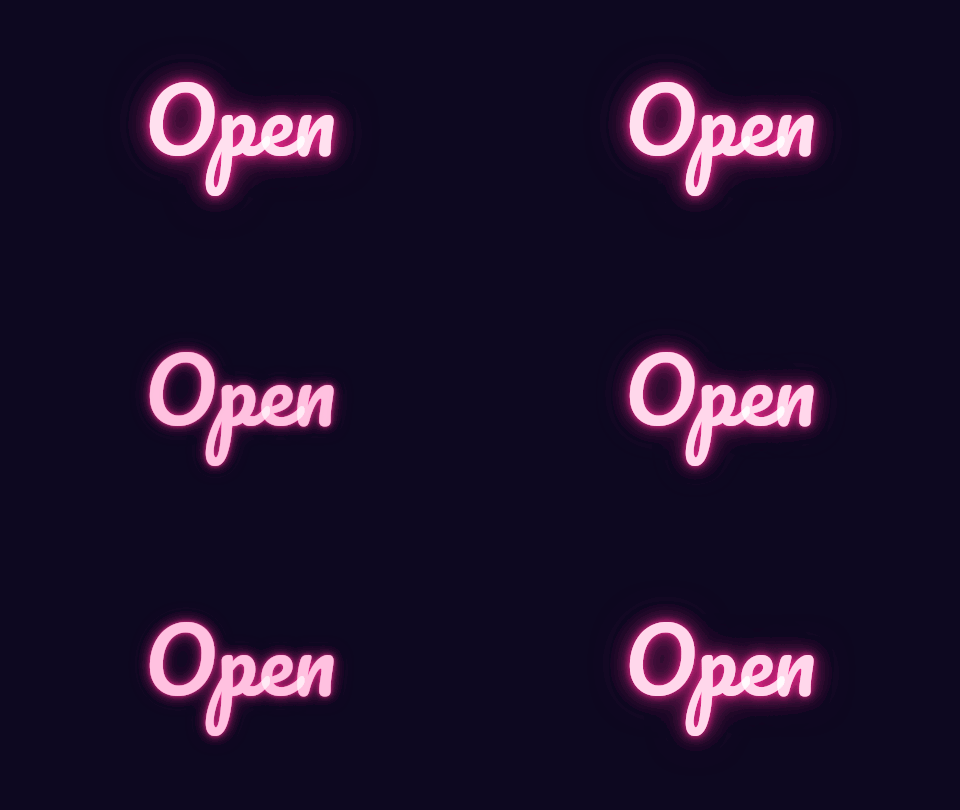 Original
 Blurred GIF
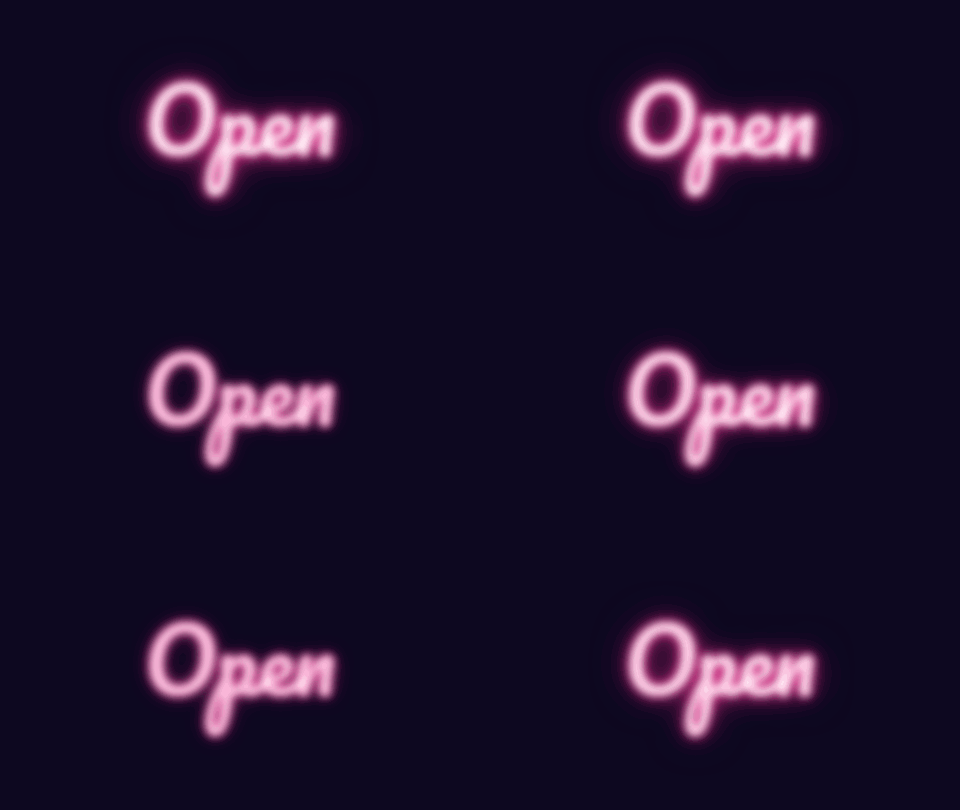
Whole-GIF blur with radius 4. The sign loses its sharp edges and the glow spreads. A small radius like this is also a way to soften noise.Settings usedBlur 4 px on the whole GIF, all frames. Output 480 × 270 px.GIF 130 KB (480 × 270 px) → GIF 167 KB (480 × 270 px), 12 frames 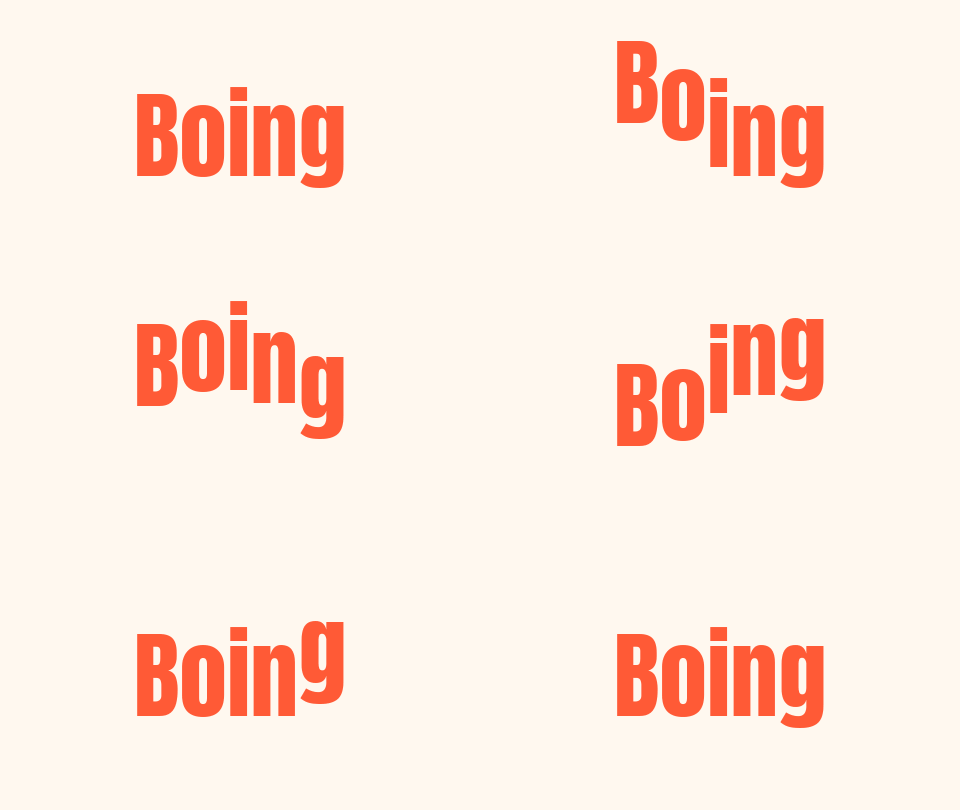 Original
 Blurred GIF
Pixelate with 16 px blocks on frames 4 to 10 only. The first three and the last six frames are copied as they were, so the ball turns into blocks for a moment and then comes back.Settings usedPixelate 16 px on the whole GIF, frames 4 to 10. Output 480 × 270 px.GIF 34 KB (480 × 270 px) → GIF 37 KB (480 × 270 px), 16 frames
Blur or pixelate: which to use
Blur mixes each pixel with its neighbours until detail disappears and the area looks soft. Pixelate replaces each square block with its average colour and gives a mosaic. To hide text, a mosaic with big blocks is hard to read, while a light blur on small text can still be readable, so raise the radius or switch to pixelate.
Blur here is three passes of an averaging filter that together approximate a Gaussian blur, and the radius slider is the size of that blur in pixels, from 1 to 30. Pixelate takes a block size from 2 to 60 pixels. A blur hides detail but it is not encryption, so check every frame in the preview before you share the GIF.
A box that stays in place
The box has one position for the whole GIF. That suits a clip where the camera does not move, or a graphic where the thing to hide stays put. It does not follow a moving face or object: if what you want hidden moves out of the box, it will show. Make the box bigger, or cover the moving part with a frame range and a second pass.
To limit the effect, untick All frames and enter a first and last frame, counting from 1. Frames outside the range are copied unchanged. Only pixels inside the box are read and written, so nothing outside it bleeds in and nothing outside it changes.
Whole-GIF blur and soft focus
A blur over the whole GIF gives a soft background, a dreamy glow, or a version that hides detail until someone opens the original. A small radius of two to four pixels softens compression noise, and a large radius turns the picture into a wash of colour.
The file can get bigger or smaller, depending on the picture, and the After pane shows the real size next to the original. To blur only a background and keep a subject sharp, blur the whole GIF in this tool, then bring the original subject back in the editor, or choose a box that covers the part to soften.
Related tools
These tools help with the same job in a different way.
- GIF cropper: cut the sensitive area out of the picture instead of hiding it.
- Add text to GIF: cover an area with a caption or a label.
- GIF compressor: bring the file size down.
When blurring a GIF helps
A name or number in a screen recording
Hide an email address, a name or a number in a short recording before you share it.
A face or a plate in a short clip
Hide a detail in a clip where the camera stays still.
A soft background
Soften a busy picture so the foreground reads more clearly.
A reveal
Pixelate the first frames and let the rest play clean, for a spoiler or a surprise.
A dreamy loop
Add a light blur over the whole GIF for a soft-focus look.
How this tool works and its limits
This is what the tool does, and where it stops.
- Your GIF never leaves your device. It is opened, blurred and re-encoded in your browser, with no upload and no account.
- GIFs up to 25 MB and 300 frames are accepted. The output is capped at 300 frames, 30 seconds and 1024 px on the longer side.
- The box is fixed: it stays in the same place on every frame and does not follow a moving subject.
- Blur radius runs from 1 to 30 px and pixelate block size from 2 to 60 px. The preview scales these to its smaller frames, and the download uses the real values.
- A blur hides detail, but it does not promise privacy. A weak blur on small text can stay readable, so use a strong setting, or pixelate, and check every frame before you share the GIF.
- Transparent areas are treated as empty, so they do not darken the edges of a transparent GIF. The result keeps the transparency, which in a GIF is on or off.
- We built and tested the tool in current desktop Chrome. It uses ordinary canvas, workers and GIF decoding, and the list below checks your own browser live. We have not tested every browser.
Does your browser support this?
This list is checked against the browser you are using right now, by asking it directly. It is not a guess from the browser name.
- GIF files: checking
- Background encoding (Web Workers): checking
Questions, answered
How do I blur part of a GIF?
Drop the GIF, keep the Box option, drag the box over the area, choose Blur and a radius, and press Apply effect. The box stays in the same place on every frame.
How do I pixelate a GIF?
Choose Pixelate instead of Blur, set the block size and press Apply effect. Larger blocks hide more detail.
Can I blur a moving face?
Not automatically. The box does not follow movement. If the face stays inside one area, a large box works. If it moves across the picture, a fixed box will not cover it.
Can I blur only some frames?
Yes. Untick All frames, enter the first and last frame, counting from 1, and the effect applies to that range only.
Is a blurred GIF safe for hiding private information?
A strong blur or large pixel blocks hide most detail, but a light blur on small text can stay readable. Check every frame in the preview, and use a stronger setting if in doubt.
Is my GIF uploaded?
No. The GIF is processed on your device. Nothing is sent to a server and you need no account.
Related tools
Other tools you may need next.
 GIF CropperFreeCrop a GIF with a draggable box or exact numbers, in a free shape or a set ratio.
 Add Text to GIFFreeCaption a GIF or short MP4 with several text layers and per-layer frame ranges.
 GIF CompressorFreeMake a GIF smaller: pick a level or a target size such as 256 KB.
 GIF Speed ChangerFreeSpeed up, slow down or reverse any GIF and keep its timing.