Screen recording to GIF
Record a browser tab, a window or your whole screen for up to 30 seconds, trim the start and end on a strip of thumbnails, and save the result as a GIF. It runs in your desktop browser, the recording stays in this tab, and nothing is uploaded.
Free · no sign-up · runs in your browser
Record
Share a tab, window or screen. Recording stops by itself at 300 frames (30 s at the frame rate below).
Nothing is uploaded. The recording stays in this tab until you close it or record again. No audio is captured.
Your recording appears here.
Your new GIF appears here.
Frames
Faded frames are outside your trim.
Thumbnails of your recording appear here.
How to use it
Choose a frame rate
Pick 10, 12 or 15 frames per second. Recording stops by itself at 300 frames, which is 30, 25 or 20 seconds at those rates.
Start recording
Press Start recording and choose a tab, a window or a screen in your browser's own share window. A live counter shows the frames recorded. Press Stop, or end sharing from the browser, when you are done.
Trim the clip
Use the start and end sliders. The thumbnail strip fades the frames outside your trim, and a preview plays what is left.
Choose a width and create the GIF
Pick a width and Balanced or Smaller file, then press Create GIF. The GIF appears with its size, frame count and length, and Download saves it.
Examples made with this tool
A screen can only be recorded by a person in a browser, so these examples are not recordings of a screen. They run our own sample videos through the same settings: the frame rate, the 640 px width limit and the same GIF writer. The numbers on each card are the real ones for these files.
- Original
 GIF
Three seconds at 10 fps is 30 frames, with Smaller file switched on and a width of 320 px. Photo-like content is the hard case for a GIF, which is why the width is kept low.Settings usedCaptured at 10 fps, 320 px wide, smaller file size.MP4 173 KB (480 × 480 px) → GIF 656 KB (320 × 320 px), 30 frames - Original
 GIF
Two seconds at 12 fps is 24 frames. The delays are 8 and 9 hundredths of a second in turn, so the clip lasts exactly two seconds.Settings usedCaptured at 12 fps, 400 px wide, smaller file size.MP4 61 KB (480 × 480 px) → GIF 302 KB (400 × 400 px), 24 frames - Original
 GIF
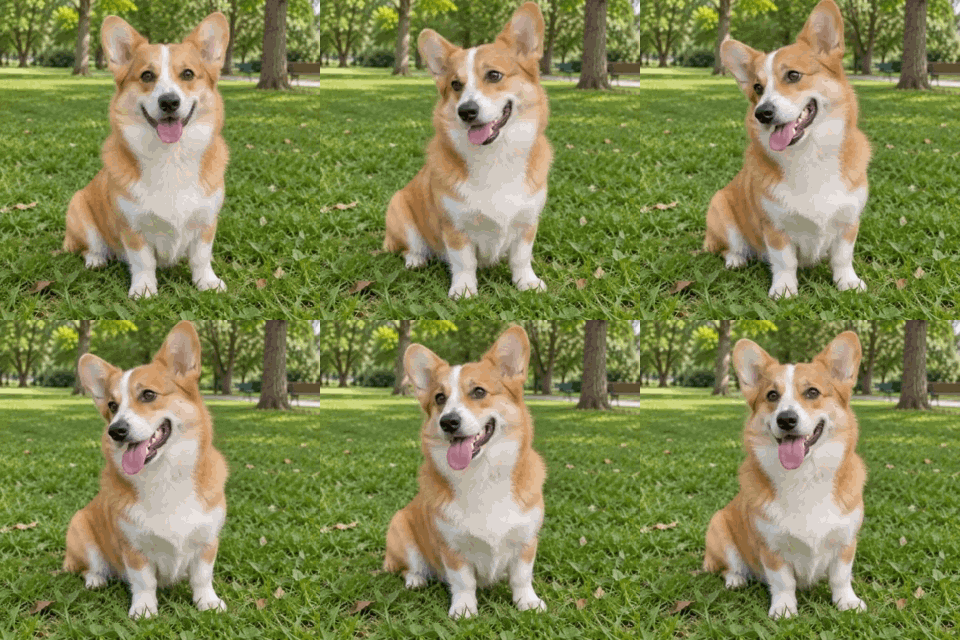
The smoothest setting, 15 fps for two seconds, is 30 frames. Motion looks better, and the file is the biggest of the four for its size.Settings usedCaptured at 15 fps, 320 px wide, smaller file size.MP4 116 KB (480 × 480 px) → GIF 573 KB (320 × 320 px), 30 frames - Original
 GIF
A narrow 240 px version for a chat or a thread, at 10 fps for three seconds. Narrower frames are the quickest way to cut a screen GIF down.Settings usedCaptured at 10 fps, 240 px wide, smaller file size.MP4 154 KB (480 × 480 px) → GIF 358 KB (240 × 240 px), 30 frames
How the recording works
When you press Start recording, your browser opens its own share window, where you choose a tab, a window or a screen. The page asks for video only, and no audio is recorded. It does not use the browser's video recorder. Frames are read straight from the capture track, at the frame rate you picked, and copied into a buffer at no more than 640 pixels wide.
Where the browser has a track reader, the page uses it. Otherwise it plays the capture in a hidden video element and takes frames from that. A shared screen only sends a frame when something changes, so if nothing moves for a second, the page repeats the last frame to keep the timing steady. The GIF plays in real time.
Limits you should know about
A recording is capped at 300 frames. At 10 frames per second that is 30 seconds, at 12 it is 25 seconds and at 15 it is 20 seconds. A live counter shows where you are, and recording stops on its own at the cap, so you never lose a clip by running long.
Frames are stored in memory in this tab, scaled down as they are captured, and nothing is written to disk or sent anywhere. Closing the tab or recording again discards the clip. When you record another tab, this page sits in the background. Where the browser has a track reader, frames keep arriving; with the video element fallback they can pause while this page is hidden, so share a window or the screen instead.
Getting a small, clear GIF
Screen content with flat colours and sharp text makes small GIFs, and video or photos make big ones. The fastest ways to cut the size are a lower frame rate, a narrower width and a shorter clip, in that order of effect. Trim off the seconds before and after the part you need.
For tutorials, 10 frames per second is usually enough, because a cursor and a menu opening do not need more. Use 15 for scrolling or animation. If the file is still too big, the GIF compressor on this site can bring it down to a size you pick.
Related tools
These browser tools help before or after you record.
- Video to GIF: use this when you already have a screen recording as a video file, which is also the route on a phone.
- Cut GIF: trim the finished GIF further by frame.
- GIF compressor: bring the GIF down to a size you choose.
When recording to GIF helps
A bug report
Show the exact steps that cause a problem in a few seconds of loop.
A short tutorial
Show a menu, a setting or a shortcut without writing a long description.
A product tour
Loop a feature in a README, a doc or a landing page.
A design handoff
Show how an animation or a hover state should behave.
A reply in a thread
Answer a "how do I" question with a clip.
How this tool works and its limits
This is what the recorder does, and where it stops.
- Nothing is uploaded. The recording lives only in this tab until you close it or record again, and no audio is captured.
- Recording is capped at 300 frames: 30 seconds at 10 fps, 25 seconds at 12 fps and 20 seconds at 15 fps. It stops by itself at the cap.
- Frames are copied at no more than 640 pixels wide. A surface smaller than that is not enlarged.
- This is a desktop feature. Phone browsers do not let web pages capture the screen, and the page tells you so and points to Video to GIF for an existing recording.
- The browser chooses what can be shared and asks you every time. Some tabs and windows, such as protected video, may come out blank, which is up to the browser and the site being shown.
- The GIF has at most 256 colours per frame. Gradients and video can look banded, and a narrower width or Smaller file keeps the size down.
- We built and tested the tool in current Chrome. The check below asks your own browser whether it can capture the screen.
Does your browser support this?
This list is checked against the browser you are using right now, by asking it directly. It is not a guess from the browser name.
- Screen capture: checking
- Background encoding (Web Workers): checking
Questions, answered
How do I record my screen as a GIF?
Press Start recording, choose a tab, window or screen to share, and press Stop when you are done. Trim the clip, choose a width, and press Create GIF.
Is my screen recording uploaded?
No. The frames are kept in memory in this tab, and the GIF is made in your browser. Closing the tab discards the recording.
How long can I record?
Up to 300 frames, which is 30 seconds at 10 fps, 25 seconds at 12 fps and 20 seconds at 15 fps. Recording stops by itself at that point.
Does it work on a phone?
No. Phone browsers do not allow web pages to capture the screen. If you have a screen recording on your phone, use Video to GIF to convert it.
Does it record sound?
No. The page asks for video only, and a GIF has no sound anyway.
Why is my GIF so big?
Long clips, high frame rates, wide frames and busy pictures all add up. Trim the clip, drop to 10 fps, choose a narrower width, and switch on Smaller file.
Related tools
Other tools you may need next.
 Cut GIFFreePick the first and last frame, delete single frames and download a shorter GIF.
 GIF CompressorFreeMake a GIF smaller: pick a level or a target size such as 256 KB.
 GIF ResizerFreeResize a GIF to an exact width and height, a percentage or a square emoji.
 Video to GIFFreeTrim an MP4 or MOV clip, pick a frame rate and width, and make a GIF in your browser.