GIF editor online
Load one GIF and build a list of edits: crop, resize, rotate or flip, cut frames, change the speed or reverse it, and apply a filter. The steps run from top to bottom, you can move or remove any of them, the preview shows the whole list at once, and a single export at the end writes the new GIF. Nothing is uploaded: it runs in your browser, with no account and no watermark.
Free · no sign-up · runs in your browser
GIF only · up to 25 MB · up to 300 frames · nothing is uploaded
Your steps
To add a caption, use Add text to GIF, then bring the result back here for more edits.
Drop a GIF first, then add steps.
The preview appears here.
Your new GIF appears here.
How to use it
Drop your GIF
Drop one GIF onto the box or click to choose it. Up to 25 MB and 300 frames. It is opened on your device and never leaves it.
Add steps
Press a plus button to add a crop, resize, rotate, cut, speed or filter step. Each new step starts from a sensible value for the picture the steps above it leave behind.
Edit, reorder and check
Open a step to change it, use the arrows to move it up or down, or remove it. Undo and redo cover every change. The preview plays the result of the whole list, in order.
Export once
Press Export GIF. The new GIF is made from your original frames at full size with the steps applied in order, and it appears next to the preview with its size and dimensions.
Examples made with this tool
Each example runs a list of steps from this editor on one of our own GIFs. The original is on the left and the result is on the right, and the settings line lists the steps in order.
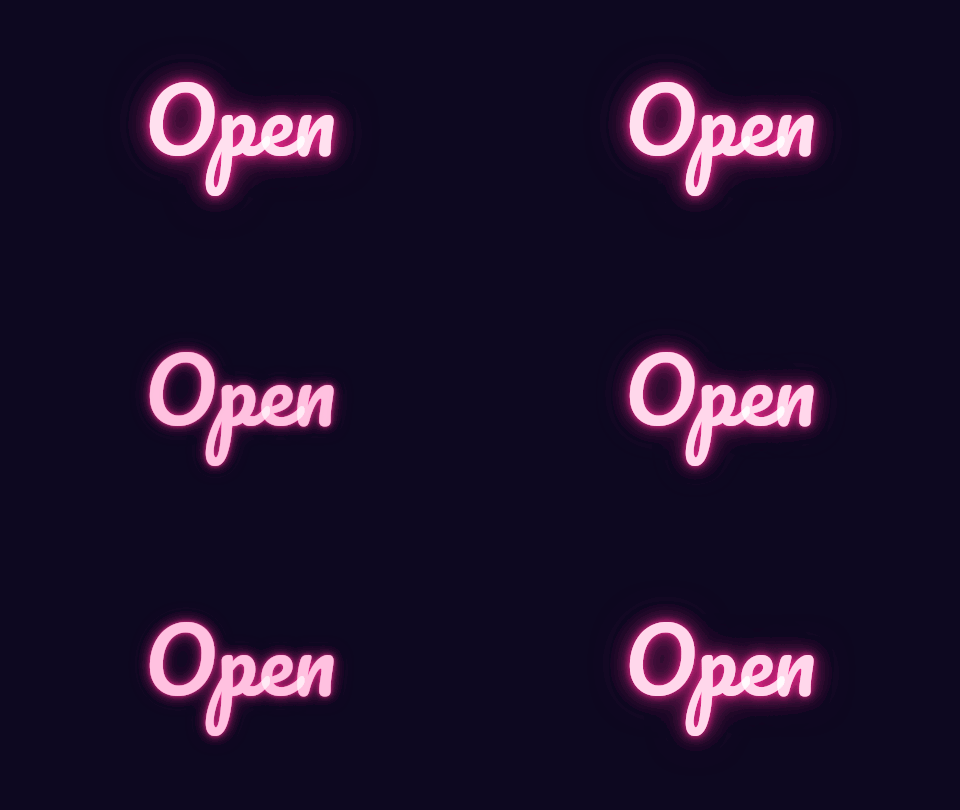 Original
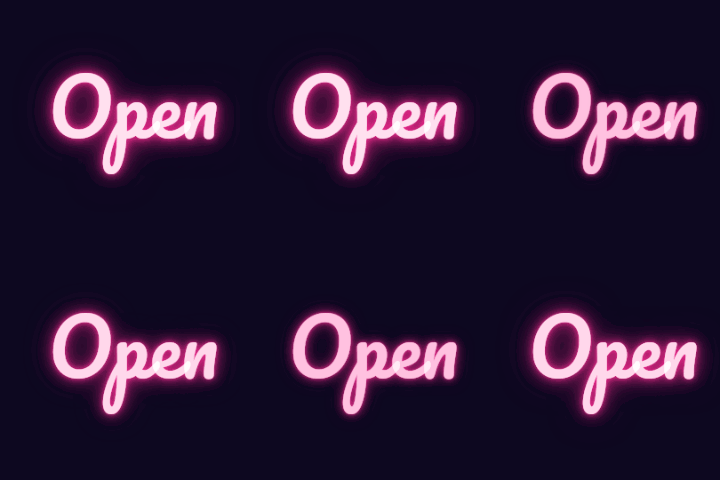 Edited GIF
Three steps on a 480 by 270 sign: crop to the 270 by 270 square around the lettering, resize it to 240 by 240, then play it at 2×. The 12 frames keep their order and the loop lasts half as long.Settings usedSteps: 270 × 270 px at x 90, y 0 → to 240 × 240 px → 2×. Output 240 × 240 px.GIF 130 KB (480 × 270 px) → GIF 109 KB (240 × 240 px), 12 frames 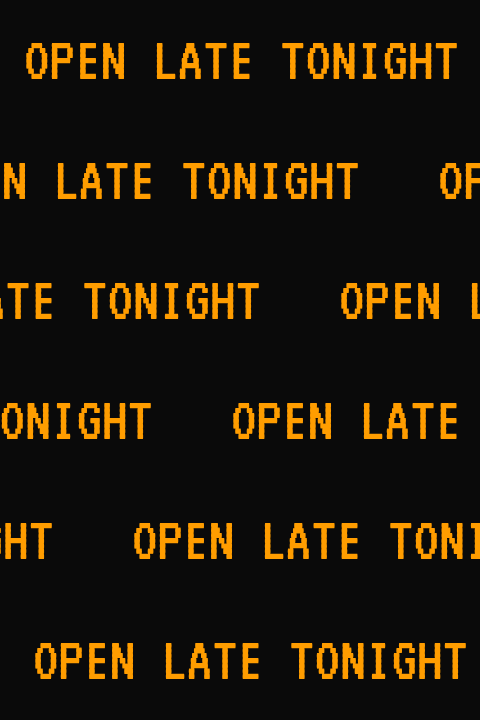 Original
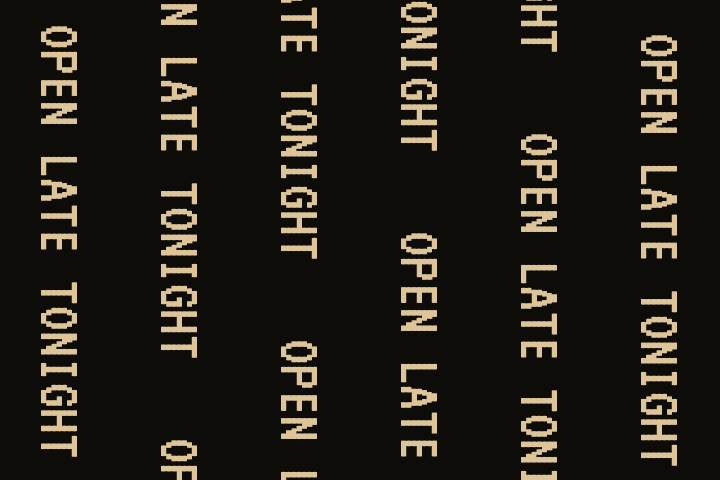 Edited GIF
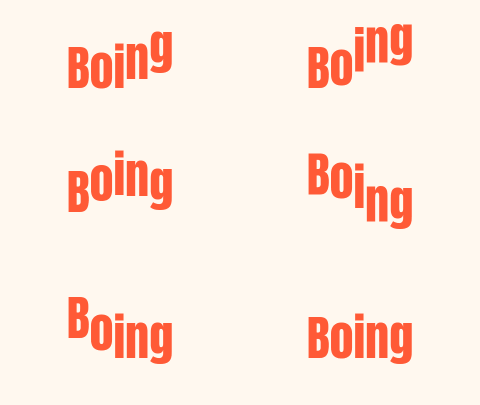
Rotate 90°, then a sepia filter. The wide 480 by 120 banner becomes a tall 120 by 480 strip, and all 57 frames get the same brown tone.Settings usedSteps: 90°, flip: none → preset: sepia. Output 120 × 480 px.GIF 215 KB (480 × 120 px) → GIF 170 KB (120 × 480 px), 57 frames 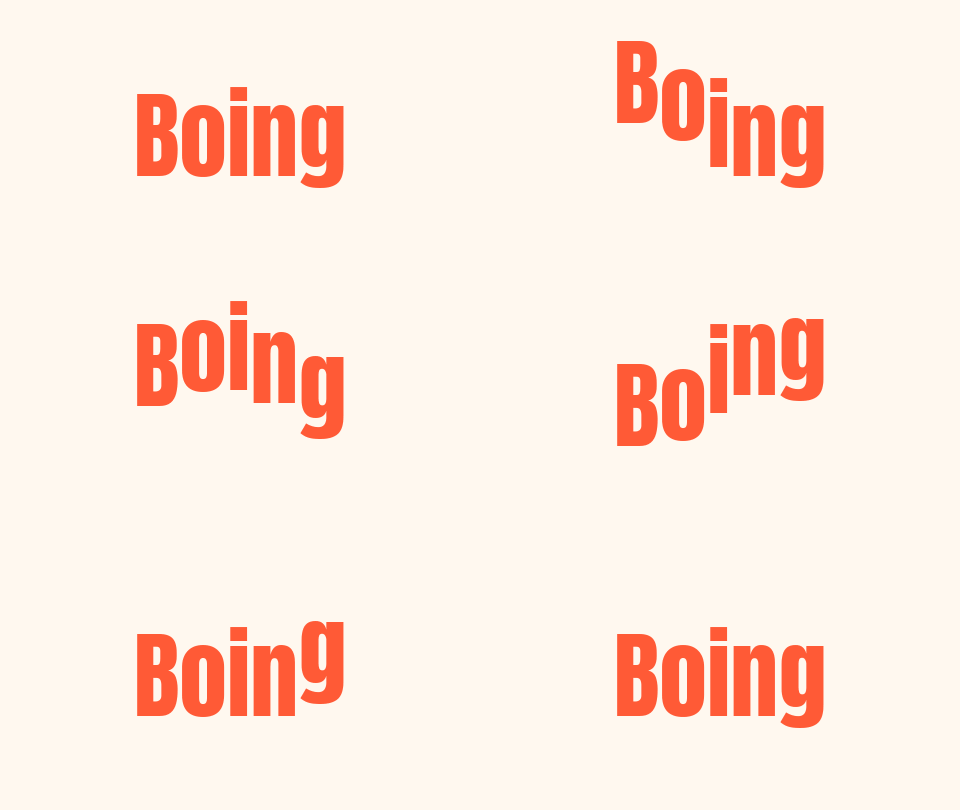 Original
 Edited GIF
Keep frames 1 to 12, play them at half speed in reverse order, then resize to 240 by 135. Order matters here: the cut comes before the reverse, so it is the first 12 frames that play backwards.Settings usedSteps: frames 1 to 12 → 0.5×, reversed → to 240 × 135 px. Output 240 × 135 px.GIF 34 KB (480 × 270 px) → GIF 14 KB (240 × 135 px), 12 frames  Original
 Edited GIF
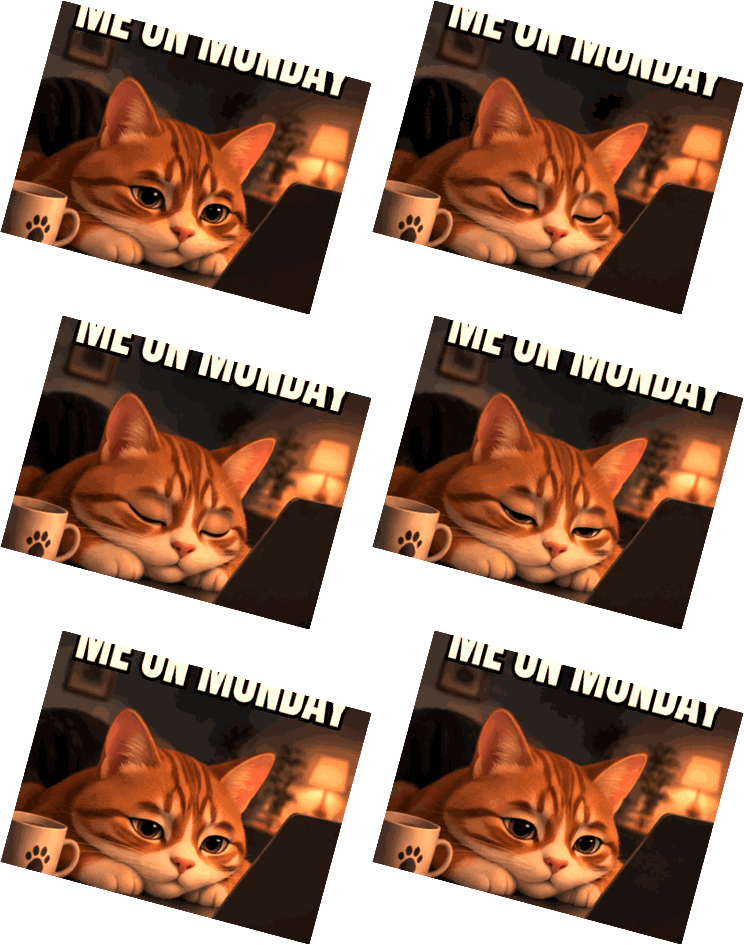
Four steps: crop the 320 by 320 meme to a 320 by 240 window, rotate it 15° with an expanded canvas, play it at 1.5×, and add a warm filter. The tilted corners are empty, so the result is a transparent GIF.Settings usedSteps: 320 × 240 px at x 0, y 30 → 15°, flip: none → 1.5× → preset: warm. Output 372 × 315 px.GIF 719 KB (320 × 320 px) → GIF 605 KB (372 × 315 px), 16 frames
How the step list works
Every step takes the GIF as the steps above it left it and passes the result down. A crop works on the picture size the earlier steps produced, and a cut counts the frames that are left. That is why order matters: cropping and then resizing gives a different picture from resizing and then cropping, and cutting before you reverse keeps different frames from reversing before you cut. When you move a step, the preview and the output size update straight away, and a step that no longer fits, such as a crop box bigger than the picture it now receives, is trimmed to fit and marked as adjusted.
A step holds only its own settings, such as a crop box or an angle. Nothing is calculated until the preview or the export runs the list, so moving, editing and undoing a step costs nothing and cannot damage your original.
The preview and the export use the same steps
The preview applies your steps to a smaller copy of the frames, at most about 320 pixels on the long side, so it keeps up while you type. The export applies the same steps to the full-size frames and writes the GIF in one pass, so the file you download is sharper than the preview. Crop boxes and sizes are scaled down for the preview, which can move an edge by a pixel. The output size line always shows the real size of the download.
The file is written once, at the end. Making several edits in separate tools means opening and re-encoding the GIF each time, and every pass can cost a little quality. Here the frames are opened once and encoded once.
Edit a GIF in one go, or do just one thing
For one change, a single tool is quicker and has more room for that one job. The cropper has a draggable box, the resizer has presets, and the cut tool shows a strip of frame thumbnails. This editor is for the times you want several changes in one go and one export, or want to try the same steps in a different order.
Adding text is not a step here, because text needs its own layers, fonts and positions. Use Add text to GIF for captions, then bring the result back to edit it further, or do the text last.
Which steps change what
Crop, resize and rotate change the picture size. Cut and speed change the frames and their timing: cut keeps a range of frames, and speed scales every delay and can reverse the order. A filter changes only colour. Crop and cut never change colours, and a filter never changes the shape or the timing.
Rotating by an angle that is not a multiple of 90° leaves empty corners, and when that happens the output is a GIF with transparent corners. GIF transparency is on or off, so the soft edge of a tilted picture is blended with white. A GIF that already has transparency keeps it.
Do just one thing
Each of these tools does one job, with controls made for it.
- GIF cropper: drag a crop box over the picture and use set aspect ratios.
- GIF resizer: set exact dimensions, or use a preset size.
- Rotate GIF: turn the picture by any angle or flip it.
- Cut GIF: pick the first and last frame on a strip of thumbnails.
When one editor with several steps helps
A clip that needs three small fixes
Crop the empty edges, cut the dead frames at the start and speed it up a little, then export once.
Getting a GIF ready for a page
Crop to the shape the page wants, resize to its width and add a filter so it matches the design.
Trying an order
Move steps up and down to see whether cropping before resizing looks better than after.
A reversed highlight
Keep the twelve frames that matter, reverse them and slow them down for a replay.
Tidying a recording
Cut the start and end of a screen recording, crop to the window and play it a little faster.
How this tool works and its limits
This is what the editor does, and where it stops.
- Your GIF never leaves your device. It is opened, edited and re-encoded in your browser, with no upload and no account.
- GIFs up to 25 MB and 300 frames are accepted. The output is capped at 300 frames, 30 seconds and 1024 px on the longer side.
- A list holds up to 12 steps. Crop and cut values are whole numbers, and a step that does not fit the picture it receives is adjusted and marked.
- The preview is drawn from smaller frames, so it is softer than the download and can differ by a pixel at an edge.
- A GIF has at most 256 colours per picture and no partial transparency. The result is one new encode with a shared palette of up to 255 colours plus a transparent index, so gradients can band and a filter can change how many colours the picture needs.
- Text, stickers and drawing are not steps. Use Add text to GIF for captions.
- We built and tested the editor in current desktop Chrome. It uses ordinary canvas, workers and GIF decoding, and the list below checks your own browser live. We have not tested every browser.
Does your browser support this?
This list is checked against the browser you are using right now, by asking it directly. It is not a guess from the browser name.
- GIF files: checking
- Background encoding (Web Workers): checking
Questions, answered
How do I edit a GIF online?
Drop the GIF, add the steps you want (crop, resize, rotate, cut, speed or filter), check the preview and press Export GIF. Everything runs in your browser.
Does the order of the steps matter?
Yes. Each step works on what the steps above it leave. Cropping and then resizing gives a different picture from resizing and then cropping, and cutting before reversing keeps different frames from reversing before cutting. Move a step with the arrows and watch the preview.
Can I undo a change?
Yes. Undo and redo cover adding, editing, moving and removing steps, and a run of slider or number changes on one step counts as a single change.
Is the editor better than the single tools?
For one change, a single tool is simpler. For several changes, the editor opens the GIF once and encodes it once, which avoids repeated re-encoding, and it lets you reorder the steps.
Does it keep the animation timing?
Yes, every frame keeps its own delay unless you add a speed step, which scales the delays, or a cut step, which drops frames.
Is my GIF uploaded?
No. The GIF is edited on your device. Nothing is sent to a server and you need no account.
Related tools
Other tools you may need next.
 GIF CropperFreeCrop a GIF with a draggable box or exact numbers, in a free shape or a set ratio.
 GIF ResizerFreeResize a GIF to an exact width and height, a percentage or a square emoji.
 Rotate GIFFreeRotate an animated GIF by 90, 180 or any angle, or flip it horizontally or vertically.
 Cut GIFFreePick the first and last frame, delete single frames and download a shorter GIF.