GIF editing tools
Editing a GIF can mean one small change or several. This group has a small tool for each job, and one editor for jobs that need several steps. Every tool runs in your browser, keeps the timing of the frames wherever the job allows, and never uploads your file.
Start with the GIF editor when you want more than one change. You load the GIF, add steps such as crop, resize, rotate, cut, speed and filter, put them in the order you want, preview the whole list and export once. For a single change, the single tools are quicker and have more room for that job. Cut GIF and the speed changer handle time. The cropper and the rotate tool handle space. Combine GIFs plays clips one after another, and the GIF collage plays two to four clips at once in a grid. Add Text to GIF puts captions on the frames you pick.
Size is the compressor and the resizer. The compressor aims at a file size, such as 256 KB, and the resizer aims at pixel dimensions, such as 128 by 128. Colour and detail have their own tools. The GIF filter adds black and white, sepia, vintage and other looks. Blur GIF softens or pixelates a region. The GIF background remover clears a plain background that touches the edge of the picture, and the transparent GIF maker makes one colour clear everywhere or builds a transparent GIF from PNG frames. The two transparency tools differ: the remover keeps same-coloured parts inside the subject, and the maker removes the colour wherever it appears.
Because every export re-encodes the GIF, do the editing first and compress last. The editor opens the GIF once and encodes it once, so a chain of its steps costs less quality than the same edits made in separate tools. Every page lists its limits: file size, frame count, transparency and timing. When you are not sure which tool you need, describe the problem. Too long: cut it. Wrong shape: crop it. Wrong size in pixels: resize it. Wrong size in kilobytes: compress it. Wrong colours: filter it. A detail to hide: blur it. A plain background in the way: remove it. If you need to start from another kind of file, see the converters, and for a brand new GIF see the Make GIFs group.
The 14 tools in this group
 GIF Speed ChangerFreeSpeed up, slow down or reverse any GIF and keep its timing.
 Add Text to GIFFreeCaption a GIF or short MP4 with several text layers and per-layer frame ranges.
 GIF CompressorFreeMake a GIF smaller: pick a level or a target size such as 256 KB.
 GIF ResizerFreeResize a GIF to an exact width and height, a percentage or a square emoji.
 GIF CropperFreeCrop a GIF with a draggable box or exact numbers, in a free shape or a set ratio.
 Cut GIFFreePick the first and last frame, delete single frames and download a shorter GIF.
 Combine GIFsFreeJoin two or more GIFs into one that plays them one after another, in the order you set.
 Rotate GIFFreeRotate an animated GIF by 90, 180 or any angle, or flip it horizontally or vertically.
 GIF editorFreeCrop, resize, rotate, cut, change speed and filter one GIF as ordered steps, then export once.
 GIF background removerFreeRemove a plain or green background from a GIF, frame by frame, and save a transparent GIF.
 Transparent GIF makerFreeMake one colour of a GIF transparent, or build a transparent GIF from PNG images.
 GIF filterFreeAdd black and white, sepia, vintage and other filters to a GIF, with brightness, contrast, saturation and hue sliders.
 Blur GIFFreeBlur or pixelate a whole GIF, or one box that stays in place on every frame.
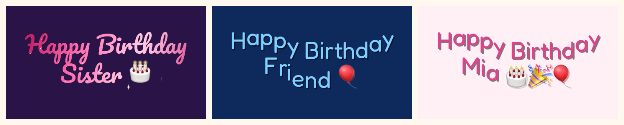 GIF collageFreePlay two to four GIFs at the same time in a grid with a gap and a background.
Questions, answered
What order should I edit a GIF in?
Cut and combine first, then crop, rotate and resize, then add text, and compress last. Each step re-encodes the GIF, and compressing last keeps the quality loss to one step.
Should I use the GIF editor or the single tools?
Use a single tool for one change, and the GIF editor for several. The editor keeps your steps in a list you can reorder, previews all of them together and encodes the GIF once at the end. It does not add text; use Add Text to GIF for that.
Do they work on GIFs with transparency?
Yes. Transparent GIFs stay transparent in the crop, resize, rotate, cut, filter, blur and compress tools. A GIF has only fully transparent or fully opaque pixels, so soft edges are blended with a matte colour. The background remover and the transparent GIF maker are the tools that create transparency.
Is there a limit on file size?
The tools accept GIFs up to 25 MB, and exports are capped at 300 frames and 30 seconds in the newer tools. Each page lists its own limits near the bottom.