GIF converter
A GIF converter should do one job well, and the jobs differ more than the name suggests. Turning a video into a GIF is about picking a short clip and a frame rate. Turning a GIF into a PNG is about picking one frame and keeping its transparency. This page lists every converter on LoopGIF so you can go straight to the one that fits. All of them run in your browser, and none uploads your file.
To make a GIF from something else, use Video to GIF for MP4 and other video, WebM to GIF for WebM clips, MOV to GIF for iPhone and QuickTime clips, Live Photo to GIF for the video saved from a Live Photo, WebP to GIF for animated or still WebP images, AVIF to GIF for AVIF pictures, APNG to GIF for animated PNG files, PNG to GIF and JPG to GIF for turning pictures into GIFs one by one, and Screen recording to GIF to record a tab, window or screen on a desktop browser. Video decoding depends on what your browser supports, and the page tells you plainly when your browser cannot read a file, and why.
To take a GIF apart, use GIF to PNG or GIF to JPG when you want one frame as a picture, the GIF splitter when you want many frames at once as a ZIP, and GIF to sprite sheet when you want every frame in a single image with a JSON file and a CSS snippet that plays it back. The three frame tools share an engine but start from different defaults, so choose by what you want to end up with.
To turn a GIF into another format, use GIF to MP4 or GIF to WebM for video, with a steady frame rate and repeats, and GIF to WebP or GIF to APNG for an animated image with a quality slider or full transparency. MP4 to WebP goes straight from a video to an animated WebP. These pages show the real file size next to the source's, so you can see whether the change helps, and the video ones say so when your browser has no encoder for the format. When you have converted something, the next step is usually making the file smaller or the right size, so every converter page links on to the compressor and the resizer. If you are not sure which tool you need, look at what you have: a video, a WebP, an AVIF, an APNG, a PNG or a JPG, or a GIF that you want to pull apart or convert. Trim a video before you convert it, because the clip length and the width decide the file size more than any other setting. And when a conversion fails, read the message under the drop box: it names the limit or the codec that caused it.
The 19 tools in this group
 Video to GIFFreeTrim an MP4 or MOV clip, pick a frame rate and width, and make a GIF in your browser.
 MOV to GIFFreeConvert an iPhone or QuickTime MOV to a GIF, with help for HEVC and HDR clips.
 WebP to GIFFreeTurn an animated or still WebP into a GIF that keeps transparency and each frame's timing.
 GIF to PNGFreeScrub to one frame of a GIF and save it as a PNG with transparency kept.
 GIF to JPGFreeSave one frame of a GIF as a JPG, with your own background colour and quality.
 PNG to GIFFreeConvert PNG files to GIFs in a batch, one GIF per PNG, with transparency kept.
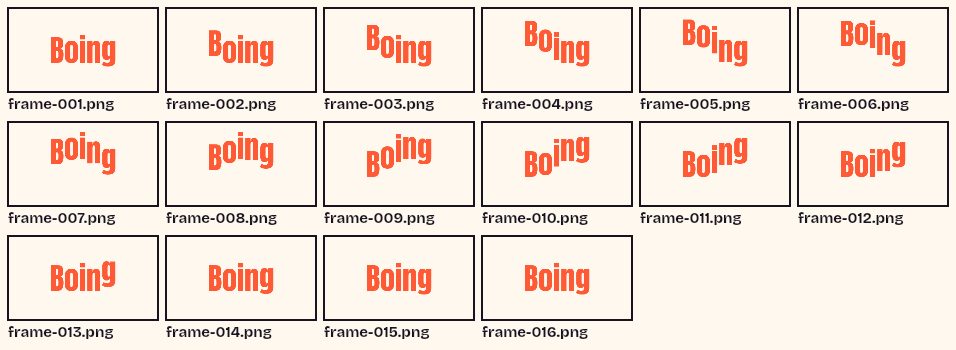 GIF SplitterFreeSee every frame of a GIF in a grid, pick the ones you want and download them as a ZIP.
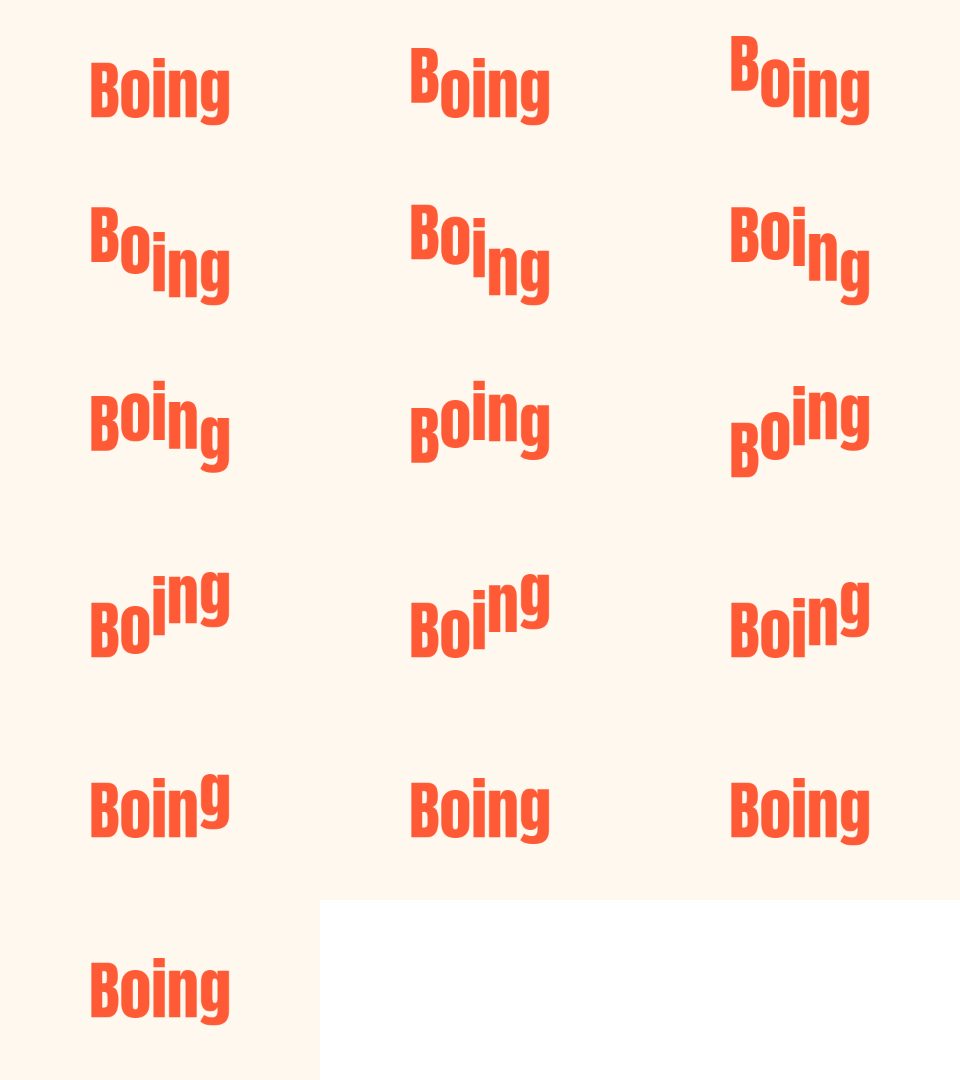 GIF to Sprite SheetFreePut every frame of a GIF in one PNG grid, with a JSON file and a CSS snippet.
 GIF to MP4FreeTurn a GIF into an MP4 video with a steady frame rate, repeats and a before and after file size.
 GIF to WebPFreeTurn a GIF into an animated WebP with a quality slider, and see both file sizes.
 APNG to GIFFreeTurn an animated PNG into a GIF that keeps each frame's timing, with a matte colour for transparency.
 Screen recording to GIFFreeRecord a tab, window or screen for up to 30 seconds in your browser, trim it and save a GIF.
 WebM to GIFFreeTrim a WebM clip (VP8 or VP9), pick a frame rate and width, and make a GIF in your browser.
 GIF to WebMFreeTurn a GIF into a WebM video (VP9) with a steady frame rate, repeats and a before and after file size.
 GIF to APNGFreeConvert a GIF to an animated PNG that keeps full 8-bit transparency, with a loop count.
 JPG to GIFFreeConvert JPG files to GIFs in a batch, one GIF per picture, as single downloads or a ZIP.
 AVIF to GIFFreeConvert an AVIF image to a GIF. Animated AVIF works only where your browser can read it.
 MP4 to WebPFreeTrim an MP4, WebM or MOV clip and save it as an animated WebP with a quality slider.
 Live Photo to GIFFreeTurn the video from an iPhone Live Photo into a GIF that loops or bounces. Save the video first.
Questions, answered
What is the best GIF converter?
The one built for your exact conversion. A general tool that does everything usually gives you fewer controls than a focused one. Here each converter has the controls its job needs, such as a trim bar and frame rate for video, or a background colour for JPG.
Are my files uploaded when I convert?
No. Every converter on this page opens and encodes your file inside your browser. The tool pages say so, and you can check in your browser that no upload request is made when you convert.
Which formats can I convert to GIF?
MP4, WebM and MOV video, the video saved from a Live Photo, animated and still WebP, still AVIF (animated where your browser can read it), APNG and still PNG, JPG, and a screen recording made in the browser. Video support depends on your browser and the codec inside the file; for example, some iPhone clips use HEVC, which not every browser can decode.
Can I convert a GIF to MP4 or WebP here?
Yes. GIF to MP4 and GIF to WebM write a video with your browser's own encoder, and GIF to WebP and GIF to APNG write animated images. Each shows the GIF's size and the new file's size. You can also convert a GIF to PNG, JPG, a ZIP of frames or a sprite sheet.