Combine GIFs
Add two or more GIFs, put them in order with the arrow buttons, choose how different sizes are fitted and download one GIF that plays them one after another. Each GIF keeps its own timing.
Free · no sign-up · runs in your browser
GIF only · up to 12 GIFs · up to 25 MB each · nothing is uploaded
Your GIFs
Add two or more GIFs to put them in order.
Your GIFs
Your new GIF appears here.
How to use it
Add your GIFs
Drop two or more GIFs, or click to choose them. You can add up to 12, each up to 25 MB. They appear in a list with their size, frames and length.
Put them in order
Use the up and down arrow buttons on each row to move a GIF, and the X to remove one. The first GIF sets the default output size.
Choose size and fit
Pick the first GIF's size or a width of 320, 480 or 640. If a GIF has a different shape, choose Contain to add bars in your colour, or Cover to fill the frame.
Combine and download
Press Combine GIFs. The new GIF appears with its size, frames and length, and Download saves it.
Examples made with this tool
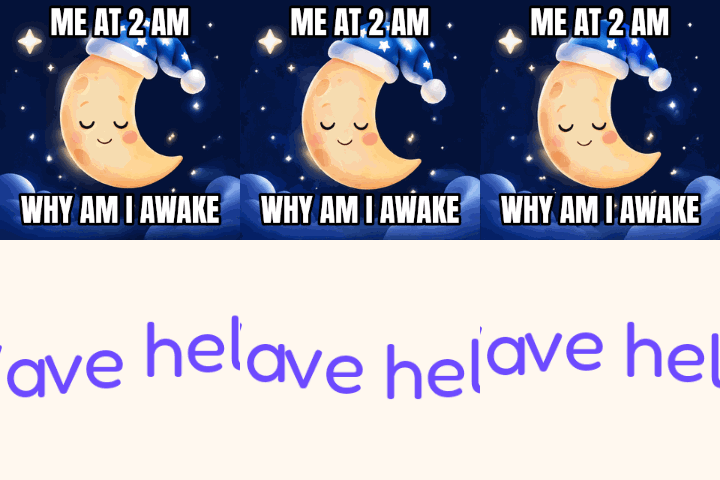
Each example combines our own GIFs with the tool's own combine code. The inputs are shown side by side on the left, and the joined GIF is on the right.
 Original
 Combined GIF
Two GIFs of the same shape joined at the first GIF's size. The second starts as soon as the first ends, and each keeps its own frame delays.Settings used2 GIFs, output the first GIF's size (480 × 270 px), fit contain on #ffffff.2 GIFs 164 KB (480 × 270 px) → GIF 160 KB (480 × 270 px), 28 frames 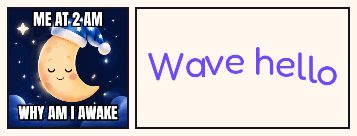 Original
 Combined GIF
A square GIF and a wide one joined into a square with Cover. The wide one fills the frame and its edges are cropped, so there are no bars.Settings used2 GIFs, output 240 px wide, fit cover on #17141f.2 GIFs 411 KB (320 × 320 px) → GIF 290 KB (240 × 240 px), 36 frames  Original
 Combined GIF
Three GIFs of different lengths joined at a width of 320 px. The total frame count is the sum of the three, and the total time is the sum of the three times.Settings used3 GIFs, output 320 px wide, fit contain on #fff8ef.3 GIFs 253 KB (480 × 270 px) → GIF 152 KB (320 × 180 px), 44 frames  Original
 Combined GIF
A 360 by 240 GIF and a 468 by 60 banner. With Contain the banner is scaled to fit the width and sits in the middle of the frame with black bars above and below.Settings used2 GIFs, output the first GIF's size (360 × 240 px), fit contain on #000000.2 GIFs 211 KB (360 × 240 px) → GIF 209 KB (360 × 240 px), 55 frames
How to combine GIFs
Add the GIFs in the order you want to see them, or add them in any order and reorder with the arrows. The tool plays them one after another: all of the first GIF, then all of the second, and so on, and then the whole thing loops. Each frame keeps its own delay, so a slow GIF stays slow and a fast one stays fast.
The summary line shows the total frames, the total time and the output size before you start. The whole output is limited to 300 frames and 30 seconds, and if you go over, the page shows the numbers and does not start. This tool plays GIFs one after another. If you want them to play at the same time, side by side in a grid, use the GIF collage instead.
When the GIFs are different sizes
GIF frames are all the same size, so when your GIFs are not, each has to be fitted into the output size. Contain scales the GIF down to fit inside, keeping its shape, and fills the leftover space with the background colour you pick. Cover scales it up until it fills the frame, and trims whatever sticks out.
The output size is the first GIF's size by default, so the first GIF is never scaled. If you would rather have a standard width, choose 320, 480 or 640 and the height follows the first GIF's shape. Transparency is not kept in a combined GIF, because the background colour is painted behind every frame.
Order and timing
The list order is the play order. The first row is first. Use the arrow buttons rather than dragging, which also works with a keyboard and on a touch screen. The names in the list are your file names, so you can tell them apart.
Timing is per frame. The tool does not stretch or shrink a GIF to match another, so a GIF with 10 frames at 100 ms and another with 40 frames at 20 ms keep their own speeds. If you want them to match, change one with the speed changer first.
Other tools for the same GIFs
These tools help before and after you combine.
- Cut GIF: trim each GIF to the part you want before you join them.
- GIF compressor: a combined GIF can be big; shrink it to a target size.
- GIF collage: play GIFs at the same time in a grid, side by side, instead of one after another.
When combining GIFs helps
A short story in several scenes
Join a few clips into a sequence that plays through and loops.
A greeting with several parts
Put a message, a picture and a sign-off in one GIF.
A reaction pack
Chain several reactions into one file to send at once.
A tutorial
Join steps recorded as separate GIFs into one walkthrough.
Making a long banner loop
Add a second GIF after the first to extend the loop.
How this tool works and its limits
This is what the tool does, and where it stops.
- Your GIFs never leave your device. They are opened and joined in your browser, with no upload and no account.
- Up to 12 GIFs at a time, each up to 25 MB. The combined GIF is capped at 300 frames and 30 seconds of playing time, and the page shows the numbers if you go over.
- The output is the size of the first GIF, or the width you choose, limited to 1024 px on the longer side. GIFs of other shapes are fitted with Contain or Cover.
- The background colour is painted behind every frame, so the combined GIF is not transparent.
- Each frame keeps its own delay. The tool does not retime GIFs to match each other.
- The combined GIF is a fresh encode with one shared palette of up to 256 colours, so a mix of very different GIFs may show some colour banding.
- We built and tested the tool in current Chrome. The arrow buttons make reordering work with a keyboard and on touch screens.
Does your browser support this?
This list is checked against the browser you are using right now, by asking it directly. It is not a guess from the browser name.
- GIF files: checking
- Background encoding (Web Workers): checking
Questions, answered
How do I combine GIFs into one?
Add the GIFs above, put them in order with the arrows, choose the size and fit, and press Combine GIFs. Download saves the new GIF.
Can I merge GIFs of different sizes?
Yes. They are fitted to the output size, either contained inside it with bars of your colour or covering the whole frame.
How do I change the order of the GIFs?
Use the up and down buttons on each row. The order in the list is the order they play.
Does it keep each GIF's speed?
Yes. Every frame keeps its own delay, so each GIF plays at its own speed in the combined one.
How many GIFs can I join?
Up to 12, as long as the combined GIF stays within 300 frames and 30 seconds.
Are my GIFs uploaded?
No. They are joined on your device. Nothing is sent to a server and you need no account.
Related tools
Other tools you may need next.
 GIF CompressorFreeMake a GIF smaller: pick a level or a target size such as 256 KB.
 GIF Speed ChangerFreeSpeed up, slow down or reverse any GIF and keep its timing.
 Add Text to GIFFreeCaption a GIF or short MP4 with several text layers and per-layer frame ranges.
 GIF ResizerFreeResize a GIF to an exact width and height, a percentage or a square emoji.