Slack emoji maker
Turn a GIF, a short video, a picture or a typed word into a custom Slack emoji. The tool crops a square, keeps a transparent background where there is one, thins the animation to 50 frames or fewer and fits the file under 128 KB. It runs in your browser, with no upload and no sign-up.
Free · no sign-up · runs in your browser
GIF, PNG, JPG, WebP, MP4, MOV or WebM. GIFs and pictures up to 25.0 MB. The file is opened on your device and never uploaded.
Add a file to see the square crop box here.
Your emoji
Press Make emoji to get a file and the Slack checklist.
These checks use the Slack limits we checked on 7 Nov 2026. Check the current guidelines before you upload.
How to use it
Add a clip or type a word
Drop a GIF, a short video or a picture on the Upload tab, or switch to Text emoji and type a short word. Your file is opened on your device and never leaves it.
Frame the square
Drag the square box over the part you want to keep, or type its X, Y and size. If the clip sits on a plain colour, tick Remove plain background to keep only the subject.
Choose GIF or PNG and a size
Pick Animated GIF or Still PNG and a size, then type an emoji name. The file name is built from it, in lower case, with letters, numbers and underscores.
Make it and read the checklist
Press Make emoji. The checklist shows the size and the frame count against Slack's limits, and the previews show the emoji small on a light and a dark background. Then download it.
Examples made with this tool
Every example below is a real output of this tool, made from one of our own files. The original is on the left and the emoji file is on the right, with its size, dimensions and frame count.
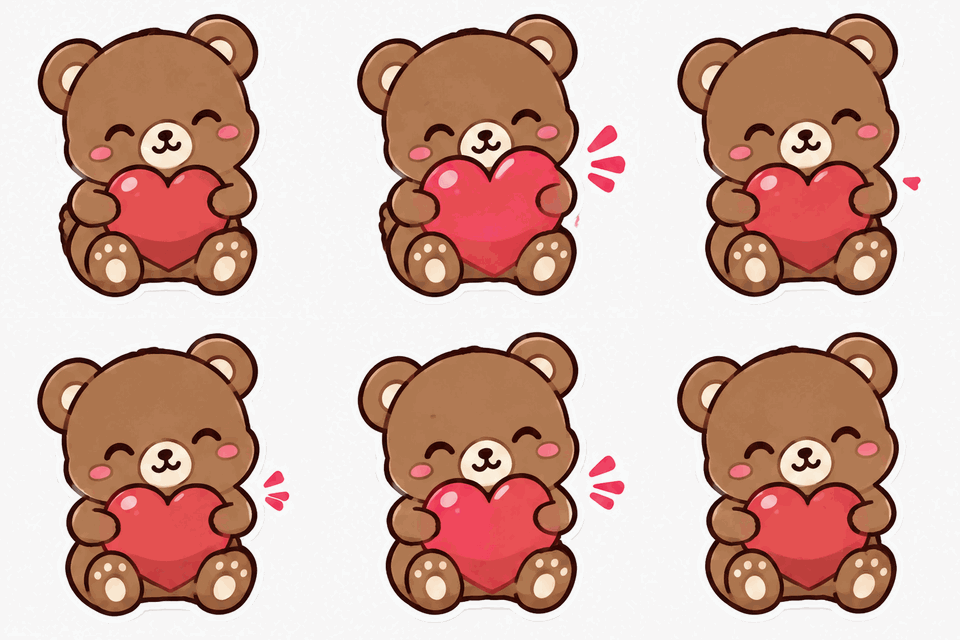 Original
 Emoji file
A 320 × 320 sticker GIF made into a small square GIF at 128 × 128. Slack's article gives no pixel size, so the tool calls 128 a common size and does not present it as a requirement.Settings usedSquare crop 320 × 320 px at 0, 0 · resized to 128 × 128 px with 255 coloursGIF 510 KB (320 × 320 px, 16 frames) → GIF 70.8 KB (128 × 128 px, 16 frames). Within the 128 KB limit.  Original
 Emoji file
A long clip made by repeating a transparent sticker. It is over the frame limit and over the size limit, so the tool thinned the frames, used fewer colours and kept the loop as long as it was.Settings usedSquare crop 160 × 160 px at 0, 0 · resized to 128 × 128 px with 64 colours · thinned to one frame in every 4, delays merged · 4 tries to fitGIF 500 KB (160 × 160 px, 80 frames) → GIF 102 KB (128 × 128 px, 20 frames). Within the 128 KB limit.  Original
 Emoji file
The cat's plain background is removed so the emoji sits cleanly on light and dark backgrounds. Slack's article says square images with transparent backgrounds work best.Settings usedSquare crop 320 × 320 px at 0, 0 · plain background removed (tolerance 30) · resized to 128 × 128 px with 255 coloursGIF 345 KB (320 × 320 px, 16 frames) → GIF 72.4 KB (128 × 128 px, 16 frames). Within the 128 KB limit. 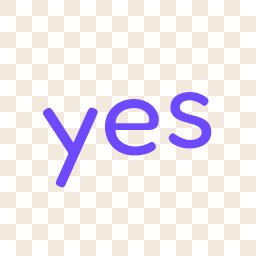 Typed text
 Emoji file
The Text emoji tab: a short word with the wave motion on a transparent square, in a rounded font. Check the At chat size preview to see whether the letters stay readable when they are small.Settings usedThe word “yes” with wave, on a transparent square · resized to 128 × 128 px with 255 coloursTyped text → GIF 13.6 KB (128 × 128 px, 20 frames). Within the 128 KB limit. 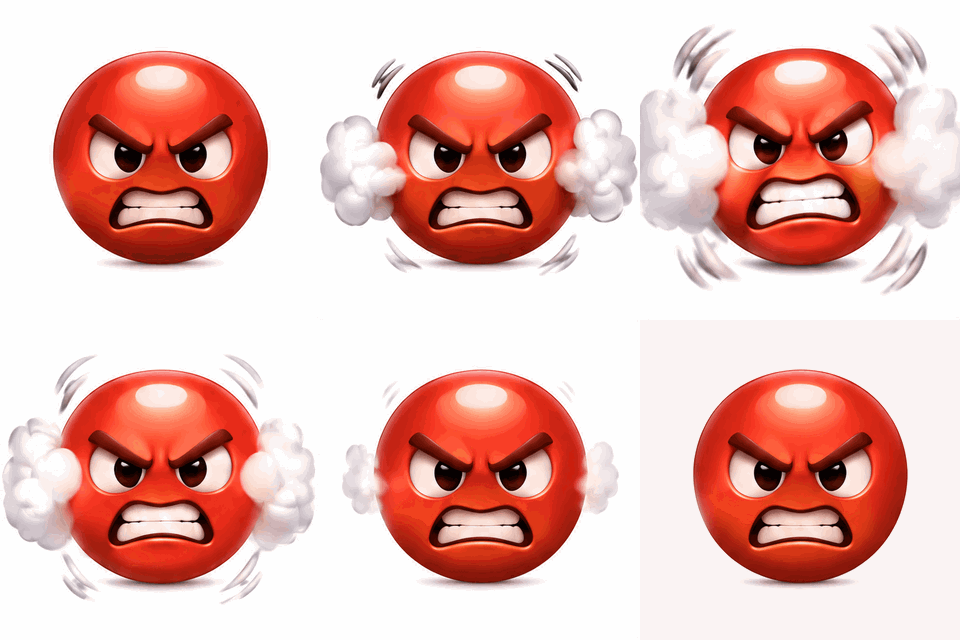 Original
 Emoji file
A still PNG made from the first frame of a sticker GIF with its plain background removed. Slack's article lists PNG as a format, and a still emoji has no frame limit to meet.Settings usedSquare crop 320 × 320 px at 0, 0 · plain background removed (tolerance 40) · saved as a still PNG at 128 × 128 pxGIF 424 KB (320 × 320 px, 16 frames) → PNG 13.3 KB (128 × 128 px). Within the 128 KB limit.
What the tool does to your file
The pipeline has five steps, in this order: square crop, optional background removal, frame cap, resize, then the size ladder. Slack's article says a GIF can include up to 50 frames, so a longer clip is thinned to 50 or fewer by keeping every second, third or fourth frame, with the delays of the dropped frames added to the frame before, so the loop lasts as long as it did.
Slack's size limit is the smallest of the three services this tool supports, so most of the fitting happens here. After the frame cap, the size ladder tries fewer colours, then fewer frames, then a narrower picture until the GIF is under 128 KB. It can go down to 64 pixels but no further. If the file still does not fit, the checklist says so, and a shorter clip or a tighter crop is the fix.
Transparent backgrounds
Slack's article says square images with transparent backgrounds work best, so the tool keeps the transparency of a GIF or PNG and can remove a plain background from a clip. GIF transparency is on or off, with no soft edges, so the soft edges of a cut-out are blended toward an edge colour you choose. Pick the one closest to the background your emoji will sit on, or leave the neutral grey.
A still PNG keeps soft edges, so a still emoji is the cleanest way to use a cut-out. Background removal works on plain or near-plain backgrounds. A busy photo background will not come out clean, and the tool does not try to find a subject by itself.
Uploading to Slack
Slack's help article explains how to add a custom emoji and who can do it in a workspace. We do not copy those steps here, because menus move and workspace owners can limit who may add emoji.
Slack may resize an image that is larger than it wants, so shaping the file yourself keeps the crop and the frames under your control. The article is also where to check the current rules for formats and sizes.
Why your upload fails
The usual causes are a file over 128 KB, a GIF with more than 50 frames, or a format Slack does not list: its article names JPG, PNG and GIF. The tool checks the size and the frame count for you and turns a picture into a PNG.
Slack asks for a name when you add an emoji, and its article is where to check the name rules. The file name here is lower-case letters, numbers and underscores, which is a safe pattern but not a rule we have sourced for Slack. A workspace can also restrict who may add emoji, and a file tool cannot see that.
Other emoji makers and file tools
The same engine for another service, or a tool for the step before or after.
- Discord emoji maker: the same pipeline for a 128 × 128 server emoji.
- Twitch emote maker: the same pipeline with a three-size ZIP and a flashing estimate.
- GIF compressor: for a GIF that is not an emoji and just needs a target file size.
- GIF resizer: scale a GIF by pixels or percent when it does not have to be square.
When this tool helps
A team reaction
Turn a short clip of a colleague, a pet or a screen recording into an emoji for your workspace.
A logo or mascot
Crop it to a square and keep the background transparent so it sits on any theme.
A word as an emoji
Make a short word such as yes bounce or wave without a source file.
A GIF over the size limit
Fit a big GIF under the limit and see how much quality the fitting cost.
A still emoji
Save one frame as a clean PNG when you do not need the motion.
How this tool works and its limits
What the tool does, what it assumes and where it stops.
- Your file never leaves your device. It is opened, cropped and encoded in your browser, with no upload, no account and no watermark.
- The size and frame checks use the numbers in the limits box under the tool, which we read from Slack's help article on the date shown. Slack can change its rules, so the checklist is a guide and the upload is the final test.
- Slack's article gives no pixel size, so the tool does not check one. It defaults to 128 × 128 pixels as a common size and also offers 96 and 64.
- The sizes the tool offers are ours, not Slack's. Slack may resize larger images.
- GIF transparency is on or off, with no soft edges. Soft edges blend toward the edge colour you pick. Background removal works on plain or near-plain backgrounds only.
- The inline and hover previews are approximate. They are our own picture of how small an emoji is in a chat, and Slack's own display may differ.
- We built and tested the tool in current desktop Chrome. It relies on features your browser reports, and the list below checks yours live. We have not tested every browser.
Does your browser support this?
This list is checked against the browser you are using right now, by asking it directly. It is not a guess from the browser name.
- GIF files: checking
- Background encoding (Web Workers): checking
- Video decoding (WebCodecs): checking
Questions, answered
How do I make a custom Slack emoji from a GIF?
Drop the GIF on the Upload tab, frame the square, choose Animated GIF and press Make emoji. The checklist shows the size and frame count against Slack's limits. Then download the file and add it in your workspace.
What size should a Slack emoji be?
Slack's help article gives no pixel size. It says square images under 128 KB with transparent backgrounds work best. This tool defaults to 128 × 128 pixels, a common size, and also offers 96 and 64.
How many frames can a Slack emoji have?
Slack's article says GIFs can include up to 50 frames. The tool thins longer clips to 50 or fewer by keeping every second, third or fourth frame and merging the delays.
How big can a Slack emoji file be?
Slack's article says square images under 128 KB work best. The tool tries stronger settings until the GIF is under that, and the checklist shows the final size.
Does a Slack emoji need a transparent background?
Slack says transparent backgrounds work best, which is advice and not a rule. The tool keeps the transparency you have and can remove a plain background if you want it.
Is my file uploaded, and is there a watermark?
No. The file stays in your browser, you need no account, and the tool adds no watermark. The AI tab is separate: it links to the AI sticker generator, which costs 1 credit per sticker and needs a signed-in account.
Related tools
Other tools you may need next.
 Discord emoji makerFree + AIMake a Discord emoji from a GIF, video, image or word: square, 128 px and under the size limit.
 Twitch emote makerFree + AIMake a Twitch emote: one GIF, or 28, 56 and 112 px in a ZIP, with a flashing check.
 GIF CompressorFreeMake a GIF smaller: pick a level or a target size such as 256 KB.
 AI Sticker Generator1 creditDescribe a sticker and get an animated GIF, with transparent GIF and PNG export.