Crop GIF Online
Crop an animated GIF with a draggable box: move it, pull a corner, or type exact numbers. Pick a square, 4:3, 16:9, 9:16 or 4:5 shape if you need one. It runs in your browser: no upload, no sign-up.
Free · no sign-up · runs in your browser
GIF only · up to 25 MB · up to 300 frames · nothing is uploaded
Drop a GIF here
Your new GIF appears here.
How to use it
Drop your GIF
Drop a GIF onto the box or click to choose one. It can be up to 25 MB and 300 frames. The animated GIF appears with a crop box over it.
Place the crop box
Drag the box to move it and drag a corner to resize it. On a touch screen you drag with your finger. Arrow keys move the box one pixel, or ten with Shift.
Choose a shape or type numbers
Tap Free, 1:1, 4:3, 16:9, 9:16 or 4:5 to lock the box to a shape. The X, Y, Width and Height fields give exact pixels, and Reset brings back the whole picture.
Crop and download
Press Crop GIF. Every frame is cropped to the box, and the new GIF appears next to the original with its dimensions and file size, ready to download.
Examples made with this tool
These five GIFs were made by running our own GIFs through this tool's own crop code. Each one lists the crop box it used and the size it started from.
 Original
 Cropped
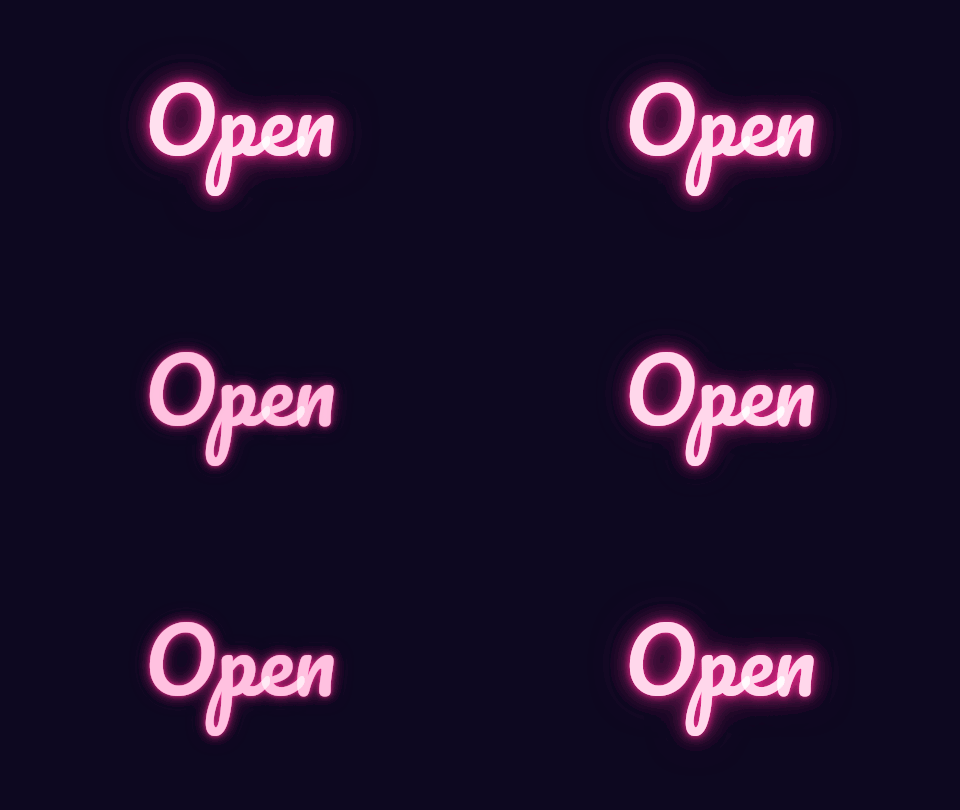
The 1:1 shape on a wide GIF. The box is the largest square that fits, centred, so the sign stays in frame.Settings usedCrop box 270 × 270 px at x 105, y 0 on a 480 × 270 px GIF, shape 1:1.130 KB → 124 KB · 5% smaller · 12 frames · 270 × 270 px 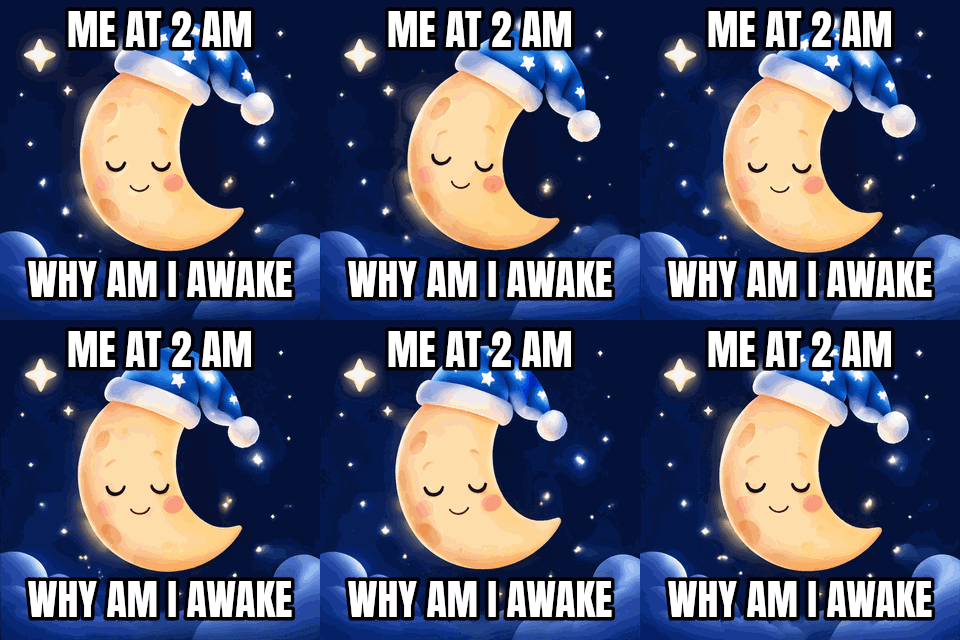 Original
 Cropped
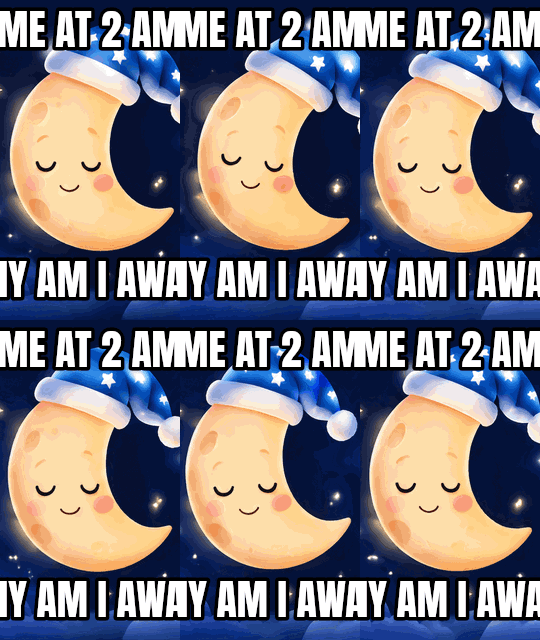
The 9:16 shape on a square GIF: the tallest box of that shape fits the full height and keeps the middle strip, which cuts away part of the meme text on the sides.Settings usedCrop box 180 × 320 px at x 70, y 0 on a 320 × 320 px GIF, shape 9:16.320 KB → 214 KB · 33% smaller · 16 frames · 180 × 320 px 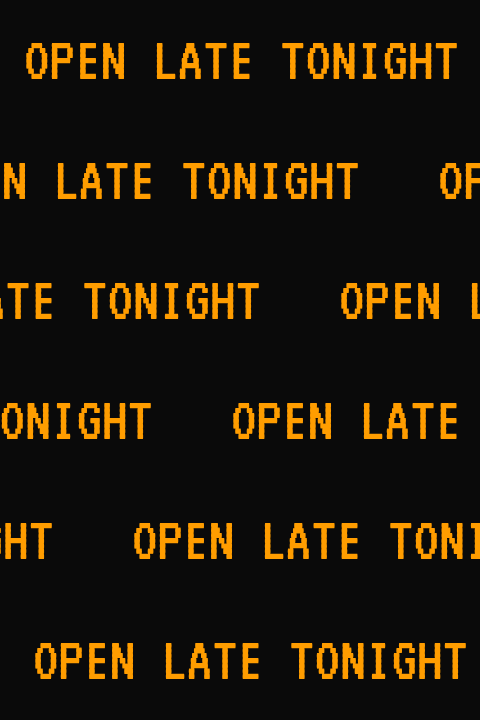 Original
 Cropped
A free-shape crop of the left half of a wide scrolling banner. All 57 frames are kept, so the scroll still plays.Settings usedCrop box 240 × 120 px at x 0, y 0 on a 480 × 120 px GIF, shape free.215 KB → 117 KB · 46% smaller · 57 frames · 240 × 120 px  Original
 Cropped
The 4:5 shape on a square sticker GIF. The box keeps the bear and trims a strip from each side.Settings usedCrop box 256 × 320 px at x 32, y 0 on a 320 × 320 px GIF, shape 4:5.221 KB → 215 KB · 3% smaller · 16 frames · 256 × 320 px 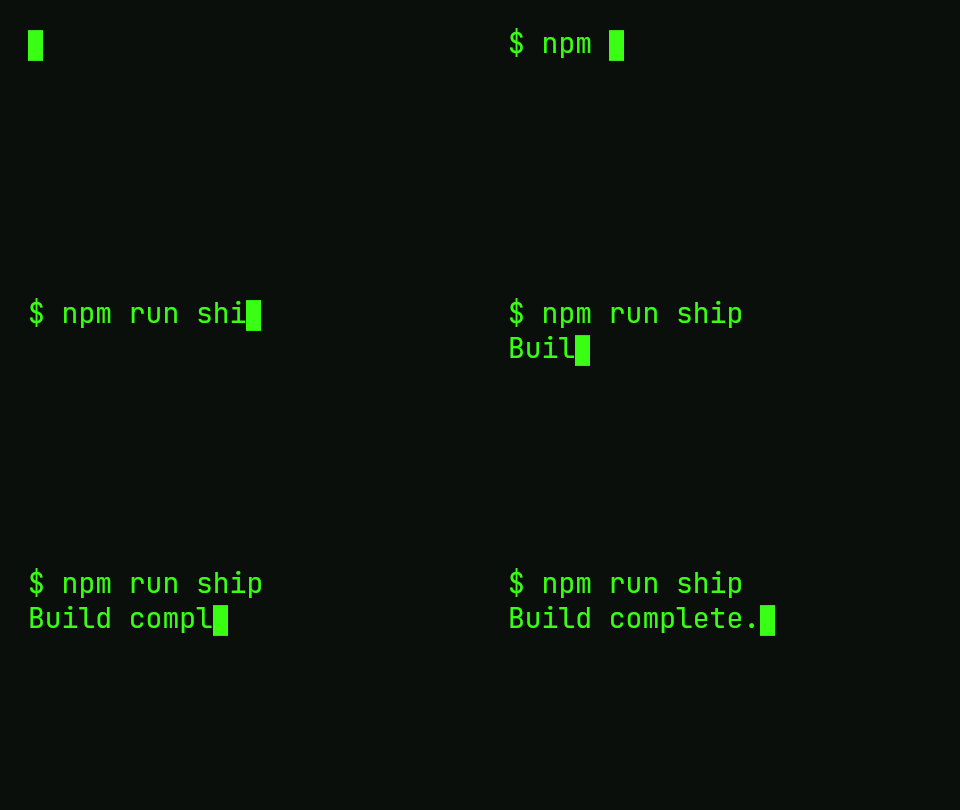 Original
 Cropped
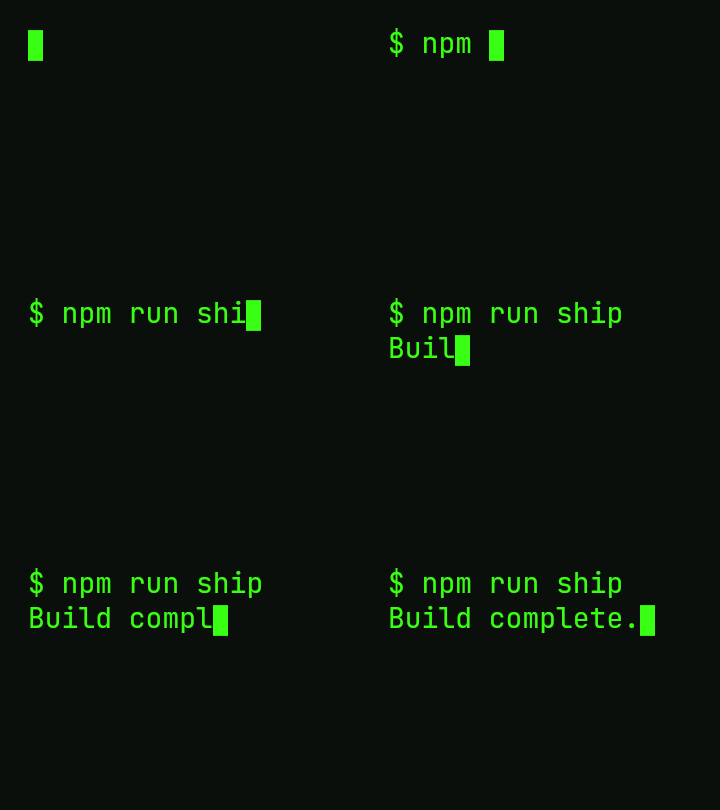
A 4:3 box pulled to the top left corner with the X and Y fields, so the left edge of the text stays and the empty right side goes.Settings usedCrop box 360 × 270 px at x 0, y 0 on a 480 × 270 px GIF, shape 4:3.28 KB → 26 KB · 9% smaller · 33 frames · 360 × 270 px
How to crop a GIF
Drop your GIF and a crop box appears over the animation, covering the whole picture. Drag the box to move it. Drag any corner to resize it: the opposite corner stays where it is. Whatever is outside the dimmed edge will be removed. If you want to be exact, the X and Y fields set the top left corner of the box in pixels, and Width and Height set its size. The arrow keys nudge the focused box by a pixel, or ten with Shift.
Press Crop GIF and every frame is cropped to the same box, so the animation keeps its timing and its frame count. The output keeps the pixel size of the box by default. If you want it smaller, set a max width of 480 or 320 pixels and the box is scaled down. If the new GIF is still heavier than you want, the GIF compressor can fit it under a size limit.
Crop to a square or 9:16 for social
Pick a shape and the box locks to it. 1:1 gives a square, which suits profile pictures and a feed that favours squares. 9:16 is the tall shape phones use for full-screen vertical video. 4:5 is a portrait shape, 16:9 a widescreen one and 4:3 the older screen shape. When you pick a shape, the box becomes the largest one of that shape that fits inside your current box, centred on it, and you can move and resize it from there.
Apps change their size rules, so check the current guidelines of the place you post to. For the shape itself, this tool is exact: the output has the proportions you chose, to the nearest pixel. The crop does not stretch anything, so faces and lettering keep their proportions. If your GIF is the wrong shape and cutting would lose too much, the resizer's Stretch option squeezes the whole picture instead, at the cost of distortion.
Crop vs resize: which one you need
Cropping removes part of the picture: the pixels outside the box are gone, and the pixels inside stay the same size. The GIF gets smaller in pixels because it covers less, not because anything was scaled. Use it to remove borders, to cut out empty space around a subject, or to change the shape of the frame.
Resizing keeps the whole picture and changes how many pixels it is drawn with. Use the GIF resizer for exact widths and heights, a percentage, or a square emoji. The two combine well: crop to the part you care about first, then resize the result, and compress it last if you need a particular file size.
Other tools for the same GIF
After the crop, these browser tools handle the next step.
- GIF resizer for exact dimensions: scale the cropped GIF to a width and height, or make a square emoji.
- GIF compressor for a smaller file: aim for 256 KB, 512 KB or any size you type in.
- GIF speed changer: play the cropped GIF faster, slower or in reverse.
When a GIF cropper helps
Remove a border
Screen recordings and conversions often carry empty margins. Drag the box inside them and keep only the picture.
Make a square or a tall GIF
Choose 1:1 or 9:16 and move the box over the part of the animation that matters.
Focus on one subject
Crop in tightly on a face, a product or a moving part so it fills the frame.
Remove clutter
Move the box so a stray corner, such as a caption or a border you don't want, falls outside it. Only crop GIFs you have the right to change.
Smaller GIFs
Fewer pixels per frame means fewer bytes. Cropping to the subject is a fast way to get a lighter file.
How this tool works and its limits
This is what the tool does with your file, and where it stops.
- Your GIF never leaves your device. It is opened, cropped and encoded in your browser, with no upload and no account. No watermark is added.
- Files up to 25 MB and 300 frames are accepted. Very large dimensions are refused if they would not fit in memory.
- One crop box applies to every frame. You can't change the box over time, and the tool does not change which frames are in the GIF.
- The box is whole pixels and stays inside the picture. It can't be smaller than 1 pixel, and the box handles stop at 8 pixels. The output is at most 1024 pixels on the longer side.
- Each frame keeps its own delay, so timing is unchanged. The new file is a fresh encode with one shared palette of up to 255 colours plus transparency, so its size can be smaller or larger than the original.
- Transparent GIFs stay transparent. Aspect shapes are rounded to whole pixels, so 16:9 on an odd width can be a pixel off.
- Works in current Chrome, Edge, Firefox and Safari, with touch dragging on phones and tablets. Browsers that can't decode GIFs natively use a built-in decoder, and the tool tells you which one it used.
Questions, answered
How do I crop a GIF?
Drop your GIF above, drag the crop box over the part you want, drag a corner to resize it and press Crop GIF. Every frame is cropped to the same box and the animation keeps its timing.
How do I crop an animated GIF and keep it animated?
Use a tool that crops every frame. This one does: it applies the same box to all frames, keeps each frame's delay and writes a new animated GIF with the same number of frames.
How do I crop a GIF to a square?
Tap 1:1. The box becomes the largest square that fits inside your current box, centred. Drag it over the part you want and press Crop GIF.
Can I crop a GIF on my phone?
Yes. The crop box and its corners respond to touch, and the X, Y, Width and Height fields work with the on-screen keyboard. Your GIF is processed in the phone's browser and is not uploaded.
Is the GIF cropper free, and is my GIF uploaded?
It is free with no sign-up. Your GIF is not uploaded: it is decoded and encoded in your browser, and your original file stays on your device.
What is the difference between cropping and resizing a GIF?
Cropping removes part of the picture and leaves the rest at the same size. Resizing keeps all of the picture and changes its size. Crop first to the part you want, then resize if you need exact dimensions.
Related tools
Other tools you may need next.
 GIF ResizerFreeResize a GIF to an exact width and height, a percentage or a square emoji.
 GIF CompressorFreeMake a GIF smaller: pick a level or a target size such as 256 KB.
 GIF Speed ChangerFreeSpeed up, slow down or reverse any GIF and keep its timing.
 Add Text to GIFFreeCaption a GIF or short MP4 with several text layers and per-layer frame ranges.